
Setting up multiple Git accounts ssh config alias vs gitconfig includeIf
Summary: This guide explains how to route SSH keys with ~/.ssh/config aliases and how to split commit author settings per folder with ~/.gitconfig includeIf in a multi-account Git setup. Use it to reduce account mix-ups and authentication mistakes.
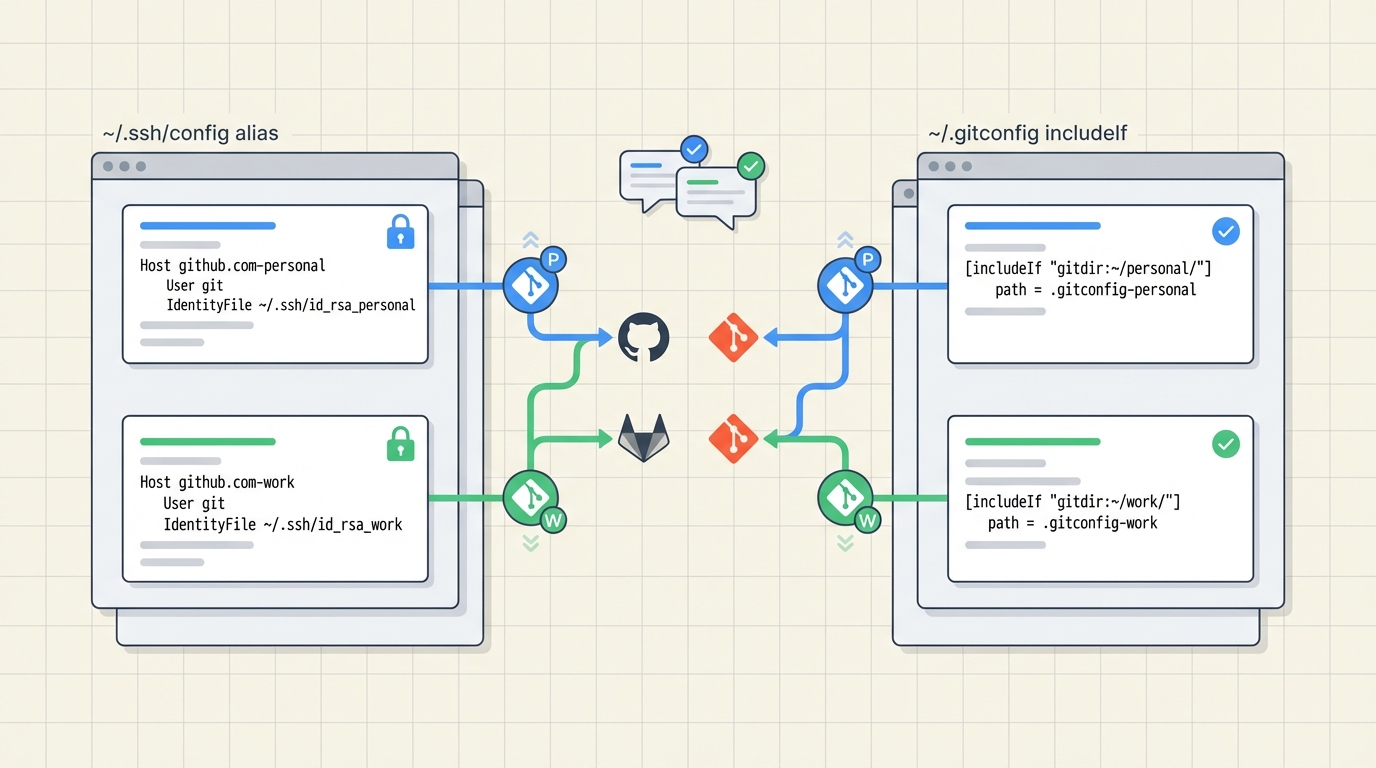
Overview
Working with multiple accounts usually falls into two patterns.
Choosing the approach that fits the situation minimizes configuration errors and authentication issues.
I personally recommend the ~/.gitconfig includeIf method.
When this helps
- You use a personal GitHub account alongside a company GitLab account.
- You have multiple GitHub accounts and need to push from different repositories with different identities.
Branching with ~/.ssh/config host aliases
When you need to access the same remote host with multiple accounts, you can pin which key to use at the SSH level.
Because the Git remote URL contains the alias, each repository clearly maps to an account.
The downside is that you must convert existing remote URLs to their alias-based counterparts.
Addresses like git@github.com:user/repo.git must be manually rewritten to alias-based URLs such as git@github-personal:user/repo.git.
Example configuration
 1# Personal GitHub account
 2Host github-personal
 3	HostName github.com
 4	User git
 5	IdentityFile ~/.ssh/id_ed25519_github_personal
 6	IdentitiesOnly yes
 7
 8# Company GitLab account
 9Host gitlab-work
10	HostName gitlab.com
11	User git
12	IdentityFile ~/.ssh/id_ed25519_gitlab_work
13	IdentitiesOnly yes
Remote URL examples
- GitHub:
git@github-personal:USER/REPO.git - GitLab:
git@gitlab-work:GROUP/REPO.git
Verification
ssh -T git@github-personalssh -T git@gitlab-work
⚠️ Common mistakes
- Testing with the default host such as
ssh -T git@github.comcan pick an unintended key.- When you use multiple accounts on the same host, aliases are mandatory.
Branching by folder with ~/.gitconfig includeIf
This method automatically separates Git settings (user name, email, etc.) by directory.
Independent of SSH key separation, it is useful when you want to isolate commit authors and signing keys safely.
Just create top-level directories for personal and work projects and apply the rules.
Example configuration
1# ~/.gitconfig
2[includeIf "gitdir:~/work/"]
3	path = ~/.gitconfig-work
4
5[includeIf "gitdir:~/personal/"]
6	path = ~/.gitconfig-personal
1# ~/.gitconfig-work
2[user]
3	name = Your Name
4	email = your.name@company.com
1# ~/.gitconfig-personal
2[user]
3	name = Your Name
4	email = your.name@gmail.com
Differences
| Item | ~/.ssh/config host aliases | ~/.gitconfig includeIf (directory-based) |
|---|---|---|
| Purpose | Fix which SSH key is used when connecting to a remote host. | Automatically split Git settings such as user.email, user.name, and signingkey based on the project path. |
| Scope | Applies per SSH connection. Only remote URLs that reference the alias host are affected. | Applies per Git repository. When the repository path matches the rule, the config is applied automatically. |
| Branching key | The host segment of the remote URL, e.g., github-personal, gitlab-work. | The local directory path, e.g., ~/work/, ~/personal/. |
| What changes | SSH picks the specified IdentityFile, HostName, User, etc. | Git config values such as commit author and signing settings. |
| Pros | Reliably separates multiple account keys on the same host (e.g., github.com). | Prevents accidentally committing to personal repos with your company email; the rule persists even when you move projects. |
| Cons | You must manually convert existing remote URLs to alias-based URLs. | You must define the folder structure first, and mistakes in the rules can apply the wrong settings. |
| Recommended for | You maintain two or more GitHub accounts or use GitHub and GitLab simultaneously. | You organize work and personal projects in separate folders and need strict commit author separation. |
The two configurations do not conflict.
~/.ssh/configseparates which key you use to connect.~/.gitconfigseparates which identity you use to commit.