
How to Set Tabs to 4 Spaces in MySQL Workbench
Summary: This post summarizes how to configure the Indentation setting in MySQL Workbench so that tab input is converted to 4 spaces. It also covers batch-converting SQL files that already contain tabs using expand, pinning the team's rule with .editorconfig, and the impact on diff and blame.
Overview
When multiple people manage SQL scripts together, it’s important to keep indentation rules consistent. If tabs and spaces are mixed, code alignment breaks and unnecessary changes can pile up in Git diffs.
In development environments, it’s common to use a policy of 4 spaces instead of tabs. MySQL Workbench, from version 6.2.4 onward, also provides a setting that converts tab input into spaces.
Configuration
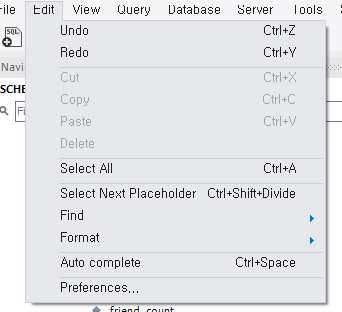
To make MySQL Workbench convert tabs to spaces, go to the Preferences menu.
1Edit -> Preferences
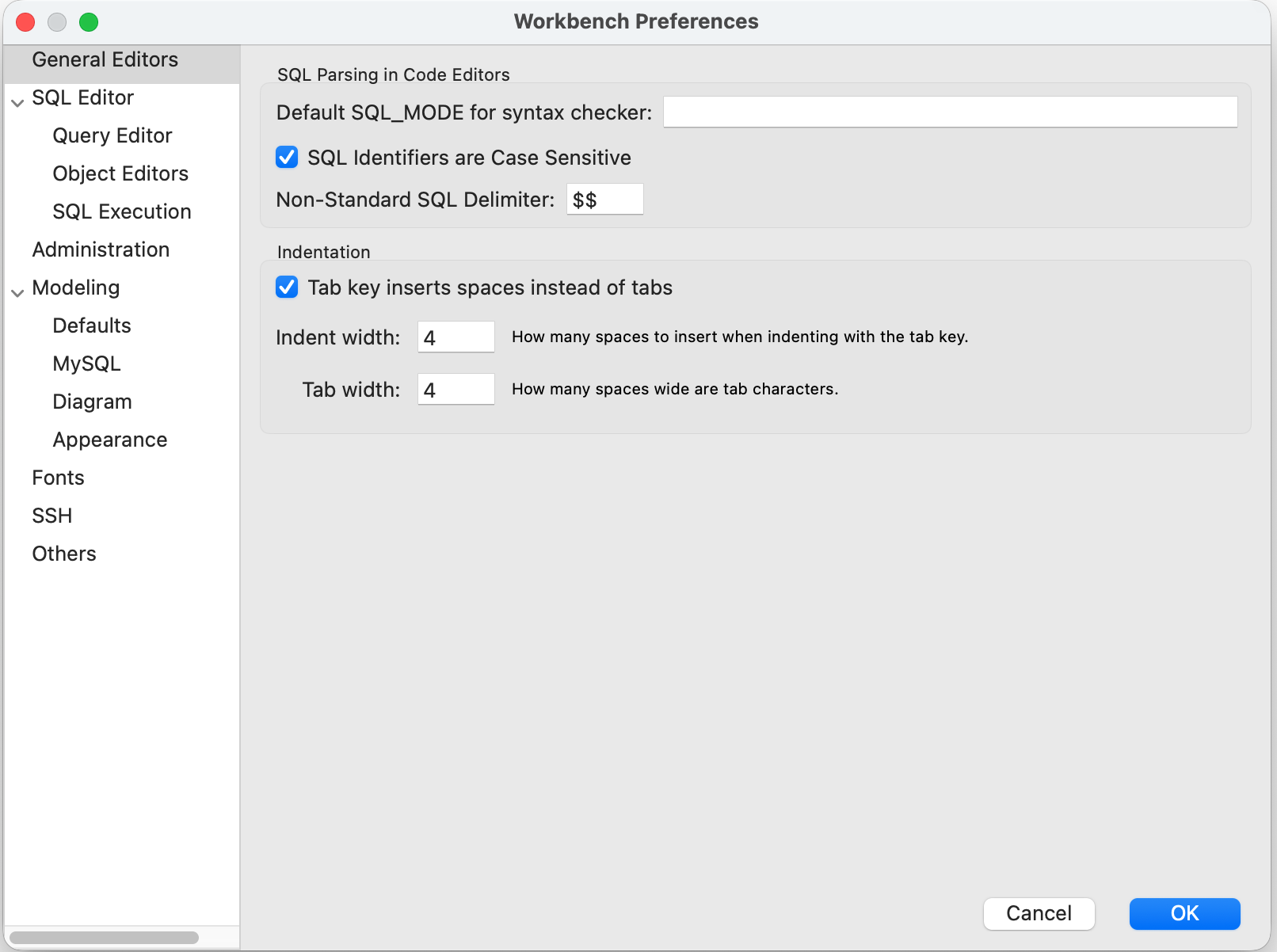
In the Preferences window, select General Editors, then change the Indentation setting.
1General Editors -> Indentation
2
3Tab key inserts spaces instead of tabs: check
4Indent width: 4
5Tab width: 4
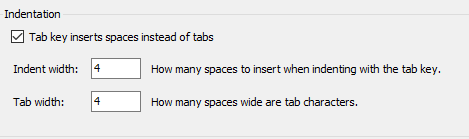
After saving the setting, pressing the tab key in the SQL editor window will insert 4 spaces instead of a tab character. If the change doesn’t apply immediately, close and reopen any open editor windows, or restart MySQL Workbench.
In the procedure editor, the setting may not apply the same way. In that case, write the code in the SQL editor window and apply it to the procedure, or format it in a separate editor and paste it in.
Reference: MySQL Workbench General Editors Preferences
Cleaning Up Files That Already Contain Tabs
This setting only applies to tabs entered going forward. Tab characters that already exist inside saved SQL files remain unchanged.
To convert them all at once from the command line, use expand.
1# Convert a single file
2expand -t 4 old.sql > new.sql
3
4# Convert an entire directory (a backup is recommended before running)
5find . -name "*.sql" -exec bash -c 'expand -t 4 "$1" > "$1.tmp" && mv "$1.tmp" "$1"' _ {} \;
If you’re working on Windows, you can also open the file in VS Code and run Convert Indentation to Spaces from the command palette.
Pinning the Team’s Rule with .editorconfig
Workbench’s Preferences apply only to that particular machine. If your team members use different editors, it’s more reliable to place a .editorconfig file at the root of the repository.
1# .editorconfig
2root = true
3
4[*.sql]
5indent_style = space
6indent_size = 4
7end_of_line = lf
8insert_final_newline = true
9trim_trailing_whitespace = true
Most editors, such as VS Code, IntelliJ, and Vim, recognize this file. However, MySQL Workbench does not read .editorconfig. For Workbench, you need to configure it separately using the Preferences setting described above.
How Indentation Affects Diffs
When tabs and spaces are mixed, lines where only the indentation changed—while the logic stays the same—end up cluttering the diff. During review, the actual changes get buried, and git blame ends up pointing to the wrong commit.
If you’re cleaning up a file that’s already mixed, it’s better to separate the commit that only fixes indentation from other changes. Mixing it with functional changes makes review difficult.
1git commit -m "chore: SQL 들여쓰기를 공백 4칸으로 통일"
When you want to view a diff while ignoring whitespace changes, use the options below.
1# Diff that ignores whitespace changes
2git diff -w
3
4# Blame that ignores whitespace changes
5git blame -w