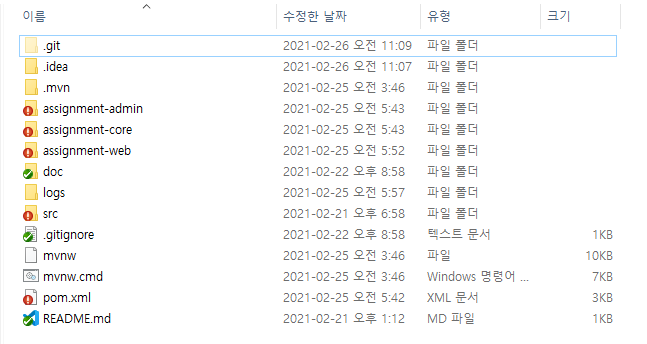
How to fix missing TortoiseGit icon overlays on Windows
Summary: When Windows Explorer hides TortoiseGit status icons, check the ShellIconOverlayIdentifiers limit and priority. Clean up the registry and restart Explorer to bring the overlays back instantly.
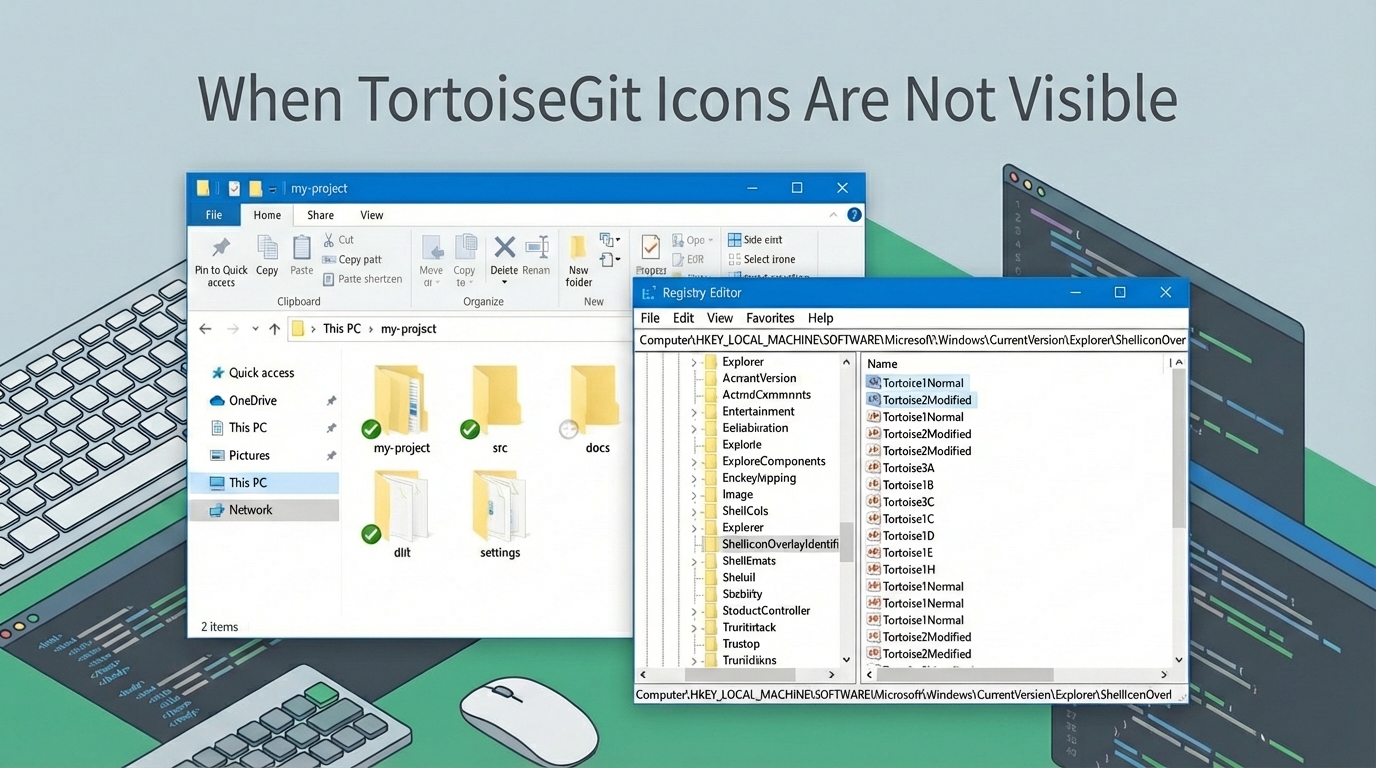
💡 When Windows Explorer loses the status icons, suspect the icon overlay handler cap and priority conflict.
Pushing the TortoiseGit entries to the top of the registry list restores the overlays.
Problem summary
- Windows Explorer does not display TortoiseGit status icons
- The issue often appears when many programs install overlay handlers
Symptoms
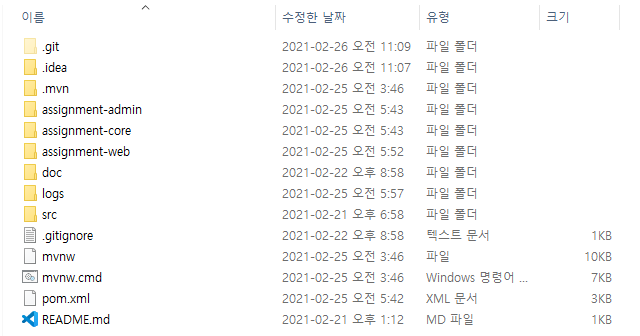
Git status icons that should appear on files and folders remain hidden.
Cause
- Windows Explorer only uses a limited number of icon overlay handlers
- Only part of the entries under
ShellIconOverlayIdentifiersis loaded - The limit is known to be around 15 entries
- When other software adds many handlers, the TortoiseGit entries can be pushed out of the active list
Fix
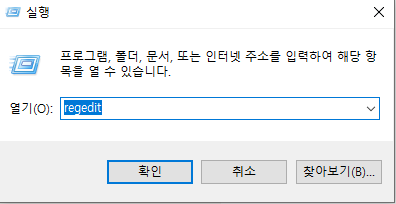
- Launch Registry Editor
- Start → Run →
regedit
- Move to the target path
Navigate to:
HKEY_LOCAL_MACHINE\SOFTWARE\Microsoft\Windows\CurrentVersion\Explorer\ShellIconOverlayIdentifiers
- Back up before editing
- Always export a backup before changing anything
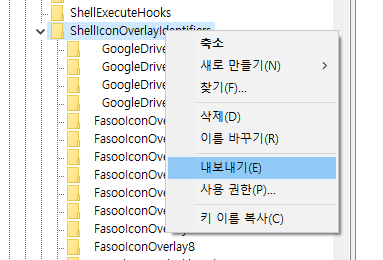
- Right-click
ShellIconOverlayIdentifiers→ Export
⚠️ Deleting keys is hard to undo. Keep the backup so you can restore the list if necessary.
- Adjust priority
The goal is to move the TortoiseGit entries toward the top:
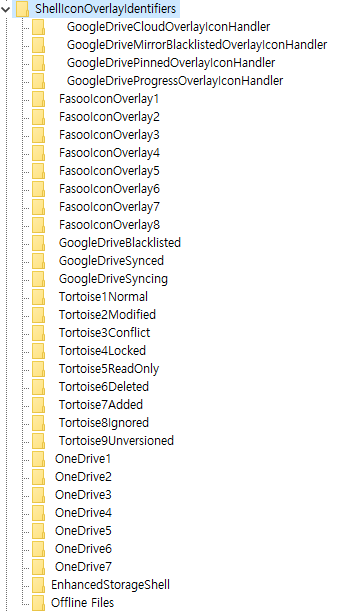
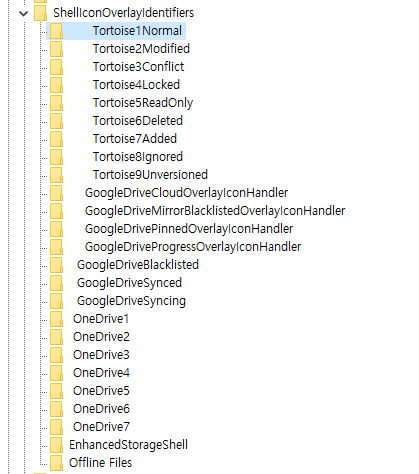
- Prefix TortoiseGit key names with spaces or numbers so they sort earlier
- Remove overlay entries you do not need
- Keep the total count within the limit
Before
After
Apply the change
Restart Explorer
You do not need to reboot. Restarting Explorer is enough.
Use Task Manager to end the
Windows Explorertask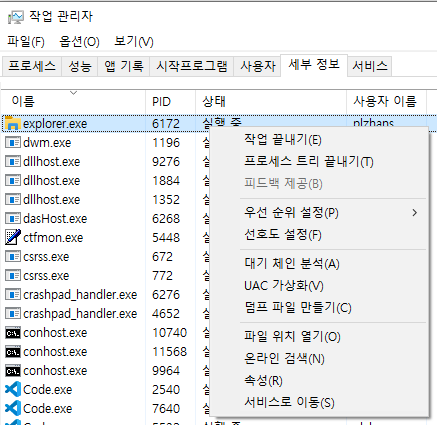
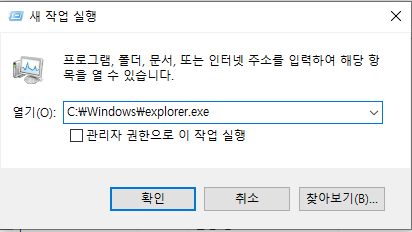
Run
C:\Windows\explorer.exeto launch it again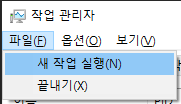
Verification
Press
F5in ExplorerConfirm that Git status icons appear again