
Installing and Configuring Garage - S3-Compatible Object Storage with Docker
Summary: From missing field s3_region to a signature region mismatch. Bring Garage up with Docker Compose and put an object in a bucket.
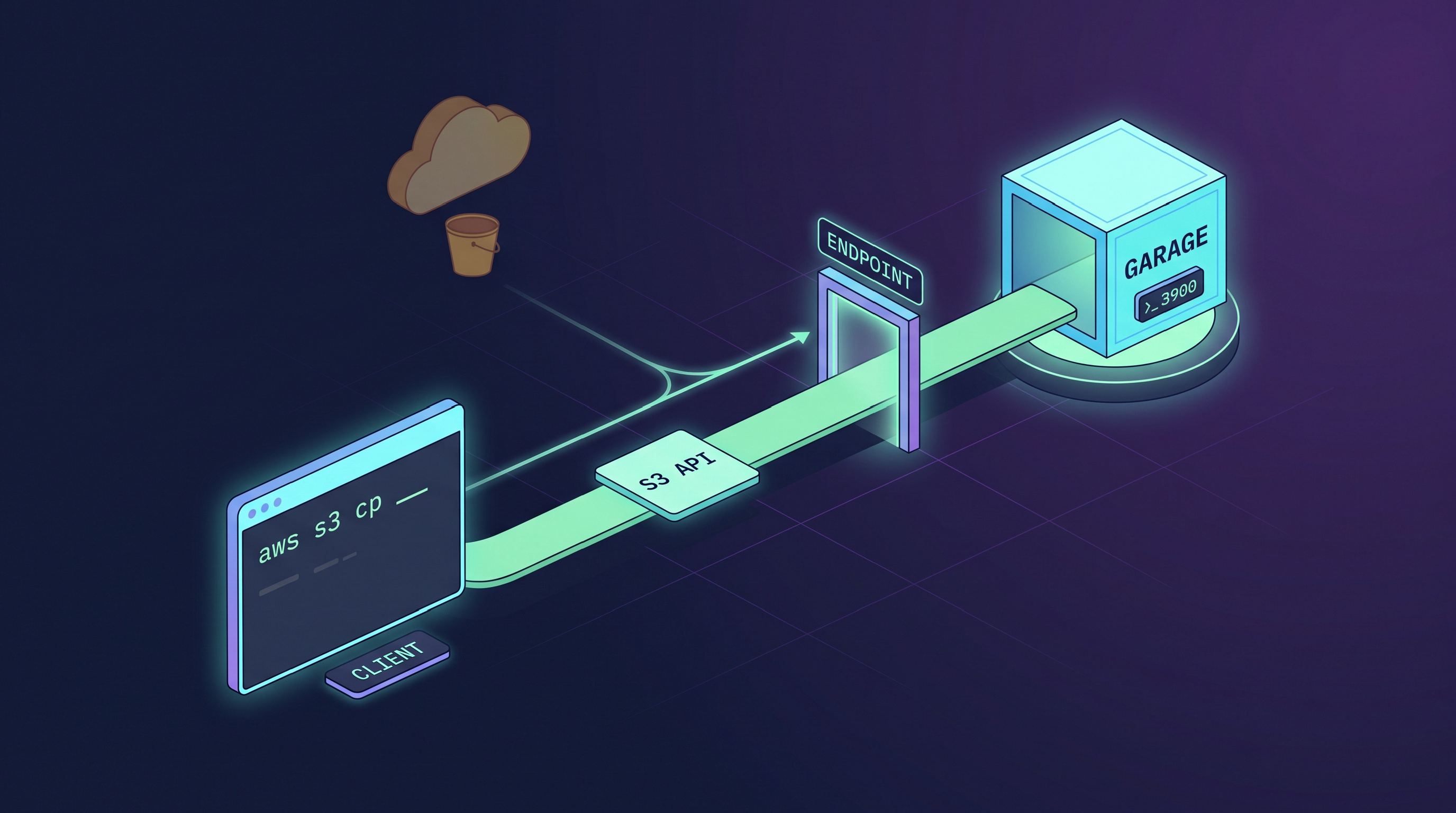
Overview
Use AWS S3 long enough and the thought arrives. A handful of files cost money every month, and the data sits inside someone else’s account. There is a NAS at home doing nothing. Could it host something to replace S3?
Garage fills that spot. It is an S3-compatible object store written in Rust, and it ships as a single binary in a 25MB Docker image. It was built for tying together nodes scattered across regions, but it runs perfectly well on a single node.
Approach it with S3 habits, though, and a few things block you. It will not even start without a config file, there is one more thing to do before you can create a bucket, and enabling public reads works in a completely different way. This post walks through those spots one at a time, from starting the container to putting an object in and taking it back out.
What is Garage
It is an S3-compatible object store built by Deuxfleurs, a French non-profit hosting collective. The project describes itself as “an S3 object store so reliable you can run it outside datacenters,” and its design intent sits in that one line. It was built for tying together servers in homes and offices, machines with no dedicated backbone and slow links.
Three traits stand out. It runs as a single binary with no external database. Each node is assigned a zone so replicas are spread geographically. And it implements the S3 API, so existing SDKs and tools attach to it unchanged.
It is written in Rust and licensed under AGPL-3.0.
- Main repository: git.deuxfleurs.fr/Deuxfleurs/garage
- GitHub mirror: deuxfleurs-org/garage
What this post covers
- Running Garage v2.4.1 with Docker Compose
- Which
garage.tomlentries are required and which can be omitted - Moving secrets into
.env - Assigning a layout, the step that comes before buckets
- Creating buckets and access keys, and granting permissions
- Uploading and downloading objects with the
awsCLI
Everything here happens in a terminal, CLI only. The web console, domains, HTTPS, and static website hosting each deserve their own post, so they are left for the ones that follow.
Three ways Garage differs from S3
Knowing these before you type anything saves confusion later. Garage speaks the S3 API, but its internal model is different. Three points make that visible.
There are no ACLs or bucket policies. PutBucketAcl, PutBucketPolicy, and PutObjectAcl are all unimplemented. The official documentation puts it this way.
Garage implements none of them, and has its own system instead, built around a per-access-key-per-bucket logic.
Permissions exist only per access key. So “make this one object public” or “make everything under public/ public” is simply not available. Splitting public from private means splitting buckets.
A node needs a role before the cluster comes alive. With S3 you create a bucket and you are done. Garage makes you declare how much capacity a node holds and which zone it sits in. That declaration is called the layout, and until it exists you cannot even create a bucket.
It does not provide TLS. The config structs have no certificate fields at all. All three endpoints serve plain HTTP. HTTPS is handled by a reverse proxy in front, or by a tunnel.
Installation
Docker and Docker Compose need to be installed already. That is covered in the post below.
The docker-compose setup
The config files used here are in the repository as-is. sample/docker/garage
 1# docker-compose.yml
 2services:
 3  garage:
 4    image: dxflrs/garage:v2.4.1
 5    container_name: garage
 6    restart: unless-stopped
 7    ports:
 8      - "3900:3900"     # S3 API, signed requests only
 9    # - "3901:3901"     # RPC, only needed to join other nodes
10    # - "3902:3902"     # static website hosting, public read
11    # - "3903:3903"     # admin API
12    env_file:
13      - .env
14    volumes:
15      - ./garage.toml:/etc/garage.toml:ro
16      - ./meta:/var/lib/garage/meta
17      - ./data:/var/lib/garage/data
The required config file
Garage will not start without its config file.
The image does not ship one, so you have to mount it yourself.
 1# garage.toml
 2
 3# required, no defaults
 4metadata_dir = "/var/lib/garage/meta"
 5data_dir     = "/var/lib/garage/data"
 6
 7# 1 for single node, 3 is the recommended cluster setting
 8replication_factor = 1
 9
10rpc_bind_addr = "[::]:3901"
11
12# db_engine   = "lmdb"              # default since v0.9
13# rpc_public_addr = "127.0.0.1:3901"  # advertised to other nodes, multi-node only
14# rpc_secret is injected as GARAGE_RPC_SECRET
15
16[s3_api]
17api_bind_addr = "[::]:3900"
18s3_region     = "garage"          # required, no default
19# root_domain = ".s3.garage.localhost"   # enables vhost-style, path-style works without it
20
21[admin]
22api_bind_addr = "[::]:3903"
23# admin_token is injected as GARAGE_ADMIN_TOKEN
24
25# whole section optional, root_domain required once it exists
26# [s3_web]
27# bind_addr   = "[::]:3902"
28# root_domain = ".web.garage.localhost"
29# index       = "index.html"
Set replication_factor to 1 for a single node. There is no default, so leaving it out stops startup with The option replication_factor is required.
Set it to the recommended 3 and every write is refused until three nodes have joined.
Omitting root_domain under [s3_api] does not give you a default domain. It turns vhost-style requests off entirely.
With a domain configured, the bucket becomes a subdomain in front of that domain. Without one, the bucket goes into the path after the existing host.
ex) domain → mybucket.s3.plzhans.com
ex) no domain → http://192.168.0.10:3900/mybucket
The two secrets go into .env rather than into garage.toml. Both values are generated with openssl.
1# openssl rand -hex 32
2GARAGE_RPC_SECRET=
3
4# openssl rand -base64 32
5GARAGE_ADMIN_TOKEN=
meta and data are needed at startup, so create them ahead of time.
1mkdir data meta
Starting it
1docker compose up -d
2docker compose logs -f
Initial setup - layout, bucket, and access key
From here on we build the layout and create the bucket and key from the CLI. To do the same work in a browser, see the post below.
Checking status
1docker compose exec garage /garage status
Zone is empty.
12026-09-23T09:33:06.972398Z  INFO garage_net::netapp: Connected to 127.0.0.1:3901, negotiating handshake...
22026-09-23T09:33:07.014538Z  INFO garage_net::netapp: Connection established to 6409899f54d1d72f
3==== HEALTHY NODES ====
4ID                Hostname      Address          Tags  Zone  Capacity          DataAvail  Version
56409899f54d1d72f  ee6cfc6c37ff  172.26.0.2:3901              NO ROLE ASSIGNED             v2.4.1
Assigning a layout - zone and capacity
1# docker compose exec garage /garage layout assign -z {zone name} -c <disk size> <node_id>
2docker compose exec garage /garage layout assign -z dc1 -c 1024G 6409899f54d1d72f
Staged, not yet applied.
12026-09-23T09:33:57.157611Z  INFO garage_net::netapp: Connected to 127.0.0.1:3901, negotiating handshake...
22026-09-23T09:33:57.199700Z  INFO garage_net::netapp: Connection established to 6409899f54d1d72f
3Role changes are staged but not yet committed.
4Use `garage layout show` to view staged role changes,
5and `garage layout apply` to enact staged changes.
Apply it.
1docker compose exec garage /garage layout apply --version 1
 12026-09-23T09:36:41.403866Z  INFO garage_net::netapp: Connected to 127.0.0.1:3901, negotiating handshake...
 22026-09-23T09:36:41.445720Z  INFO garage_net::netapp: Connection established to 6409899f54d1d72f
 3==== COMPUTATION OF A NEW PARTITION ASSIGNATION ====
 4
 5Partitions are replicated 1 times on at least 1 distinct zones.
 6
 7Optimal partition size:                     3.7 GiB
 8Usable capacity / total cluster capacity:   953.7 GiB / 953.7 GiB (100.0 %)
 9Effective capacity (replication factor 1):  953.7 GiB
10
11dc1                 Tags  Partitions        Capacity   Usable capacity
12  6409899f54d1d72f  []    256 (256 new)     953.7 GiB  953.7 GiB (100.0%)
13  TOTAL                   256 (256 unique)  953.7 GiB  953.7 GiB (100.0%)
14
15
16New cluster layout with updated role assignment has been applied in cluster.
17Data will now be moved around between nodes accordingly.
Done. Check the state again.
1docker compose exec garage /garage layout show
Creating a bucket
1docker compose exec garage /garage bucket create mybucket
Created.
 12026-09-23T09:38:56.805982Z  INFO garage_net::netapp: Connected to 127.0.0.1:3901, negotiating handshake...
 22026-09-23T09:38:56.847685Z  INFO garage_net::netapp: Connection established to 6409899f54d1d72f
 3==== BUCKET INFORMATION ====
 4Bucket:          9db3bec13c42ac19396bac4cac65fa3e02d7d3f13aa900039194570362d766a1
 5Created:         2026-09-23 09:38:56.848 +00:00
 6
 7Size:            0 B (0 B)
 8Objects:         0
 9
10Website access:  false
11
12Global alias:    mybucket
13
14==== KEYS FOR THIS BUCKET ====
15Permissions  Access key    Local aliases
Creating an access key
1docker compose exec garage /garage key create my-app-key
Created.
 12026-09-23T09:40:14.566030Z  INFO garage_net::netapp: Connected to 127.0.0.1:3901, negotiating handshake...
 22026-09-23T09:40:14.607746Z  INFO garage_net::netapp: Connection established to 6409899f54d1d72f
 3==== ACCESS KEY INFORMATION ====
 4Key ID:              GK05...
 5Key name:            my-app-key
 6Secret key:          5f98a...
 7Created:             2026-09-23 09:40:14.608 +00:00
 8Validity:            valid
 9Expiration:          never
10
11Can create buckets:  false
12
13==== BUCKETS FOR THIS KEY ====
14Permissions  ID  Global aliases  Local aliases
Granting the key access to the bucket
1docker compose exec garage /garage bucket allow --read --write mybucket --key my-app-key
Registered.
 12026-09-23T09:41:35.840001Z  INFO garage_net::netapp: Connected to 127.0.0.1:3901, negotiating handshake...
 22026-09-23T09:41:35.882581Z  INFO garage_net::netapp: Connection established to 6409899f54d1d72f
 3==== BUCKET INFORMATION ====
 4Bucket:          9db3bec13c42ac19396bac4cac65fa3e02d7d3f13aa900039194570362d766a1
 5Created:         2026-09-23 09:38:56.848 +00:00
 6
 7Size:            0 B (0 B)
 8Objects:         0
 9
10Website access:  false
11
12Global alias:    mybucket
13
14==== KEYS FOR THIS BUCKET ====
15Permissions  Access key                              Local aliases
16RW           GK05...                      my-app-key
Testing the API
Now put a real object in with the aws CLI. Reaching Garage from another machine is the natural case, so the endpoint is given as an address. The 192.168.0.10 below is an example; replace it with the address of the machine running Garage.
1export AWS_ACCESS_KEY_ID=GK...
2export AWS_SECRET_ACCESS_KEY=...
3export AWS_REGION=garage
4export AWS_EC2_METADATA_DISABLED=true
Turning on AWS_EC2_METADATA_DISABLED is worth it. Without it the CLI sometimes stalls briefly looking for the EC2 metadata service.
The region has to match or the signature fails
Leave AWS_REGION out, or set it to something else, and you get this.
1An error occurred (AuthorizationHeaderMalformed) when calling the ListBuckets operation:
2Authorization header malformed, unexpected scope: '20260923/us-east-1/s3/aws4_request',
3expected: '20260923/garage/s3/aws4_request'
The connection went through; the signature is what got rejected. Helpfully the error prints the scope it expected, so match it to s3_region in garage.toml.
Putting objects in and taking them out
Once the region matches, the listing comes back.
1aws --endpoint-url http://192.168.0.10:3900 s3 ls
12026-09-23 18:38:56 mybucket
Upload a file.
1echo "hello garage" > hello.txt
2aws --endpoint-url http://192.168.0.10:3900 s3 cp hello.txt s3://mybucket/test/hello.txt
1upload: ./hello.txt to s3://mybucket/test/hello.txt
Check it.
1aws --endpoint-url http://192.168.0.10:3900 s3api head-object \
2  --bucket mybucket --key test/hello.txt
1{
2    "AcceptRanges": "bytes",
3    "LastModified": "2026-09-23T09:45:12+00:00",
4    "ContentLength": 13,
5    "ETag": "\"d719760daa49cdebc41dfdd40474cb37\"",
6    "ContentType": "text/plain",
7    "Metadata": {}
8}
ContentType is a value the CLI inferred from the file extension and sent along. ETag is the MD5 of the content, which holds for a single-part upload; multipart uploads compute it differently.
Download it and compare against the original to confirm the round trip is intact.
1aws --endpoint-url http://192.168.0.10:3900 s3 cp s3://mybucket/test/hello.txt roundtrip.txt
2diff hello.txt roundtrip.txt
Bucket addressing - path-style and vhost-style
path-style is the default here
There is a reason the commands above worked without any extra configuration. Because root_domain was omitted, Garage ignores the Host header and finds the bucket in the path.
1http://192.168.0.10:3900/mybucket/test/hello.txt
2                         ^^^^^^^^ bucket
Switching to vhost-style
As AWS has pushed path-style toward legacy status, modern SDKs default to vhost-style, which puts the bucket in the hostname.
1# garage.toml
2
3# ...
4
5[s3_api]
6# ...
7root_domain = ".s3.plzhans.com"
The config file is read only at startup, so a restart is enough.
1docker compose restart garage
The resulting path. mybucket.s3.plzhans.com has to resolve to the Garage host, which means a wildcard DNS record.
1http://mybucket.s3.plzhans.com:3900/test/hello.txt
2       ^^^^^^^^ bucket
Command reference
Status
1docker compose exec garage /garage status
2docker compose exec garage /garage stats
3docker compose exec garage /garage health
Layout
1docker compose exec garage /garage layout show
2docker compose exec garage /garage layout assign -z dc1 -c 500G <node_id>
3docker compose exec garage /garage layout apply --version 1
4docker compose exec garage /garage layout revert
Keys
1docker compose exec garage /garage key create my-app-key
2docker compose exec garage /garage key list
3docker compose exec garage /garage key info my-app-key
4docker compose exec garage /garage key delete my-app-key
Buckets
1docker compose exec garage /garage bucket create mybucket
2docker compose exec garage /garage bucket list
3docker compose exec garage /garage bucket info mybucket
4docker compose exec garage /garage bucket allow --read --write mybucket --key my-app-key
5docker compose exec garage /garage bucket deny --write mybucket --key my-app-key
6docker compose exec garage /garage bucket website --allow mybucket
7docker compose exec garage /garage bucket alias mybucket s3.plzhans.com
8docker compose exec garage /garage bucket delete mybucket
FAQ
s3_region is not an AWS region
Reading s3_region invites the question “which region should I create this in?” That is not what it is.
In AWS a region plays three roles at once. Where the data physically sits, the endpoint address, and the SigV4 signing scope. Garage has no concept of a region. There is one cluster and that is all. But imitating the S3 protocol requires a region string inside the signature. s3_region is that declaration, a shell of the three roles with only the signing scope left. Whatever the value is, no data moves.
In Garage, physical placement is decided by the zone in the layout.
Leaving s3_region out causes an error
1garage | Error: TOML decode error: TOML parse error at line 14, column 1
2garage |    |
3garage | 14 | [s3_api]
4garage |    | ^^^^^^^^
5garage | missing field `s3_region`
The error points at the [s3_api] line, which makes it easy to assume the section itself is wrong. In fact a single field inside it is missing. The configuration docs list "garage" as the default for s3_region, but that means it is the conventional value, not that omitting it fills anything in. In the source it is declared as pub s3_region: String with no default.
Trust a value labelled “default” in the docs and delete it and this is what happens. metadata_dir, data_dir, rpc_bind_addr, replication_factor, and s3_region all have to be filled in.
Wrapping up
Garage speaks the S3 API, but it is not S3.
Know these three going in and the rest goes smoothly.
- A node needs a role before you can create a bucket
- Permissions exist only per access key.
- It will not even start without a config file.
One binary, one config file, five required entries. Fifteen lines of Docker Compose gets you S3-compatible storage and the aws CLI attaches to it as-is.
That is the floor. To actually use it you need a domain and HTTPS, and since Garage does no TLS itself, something has to sit in front.
Serving public files on the web is also handled by a separate endpoint rather than the S3 API.