
Accessing Git remotes over SSH: from key generation to registration
Summary: A complete walkthrough for connecting to Git remotes via SSH. Compare HTTPS vs SSH, generate Ed25519 keys, set proper chmod permissions, register the public key on GitHub/GitLab, and verify with ssh -T so you can eliminate authentication issues quickly.
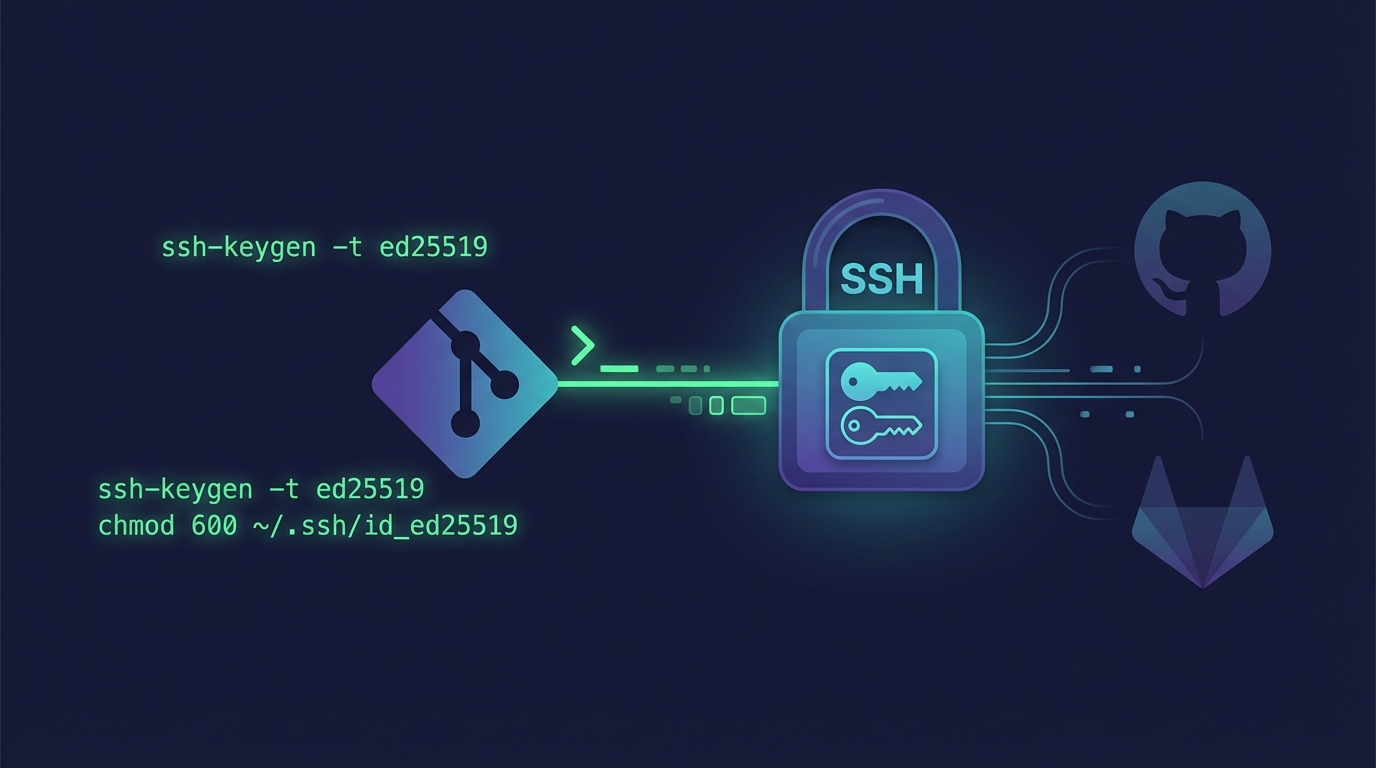
Overview
Git remotes are typically accessed via HTTPS or SSH.
Most people start with HTTPS because browser logins and web credentials feel familiar.
In the long run, however, SSH reduces operational friction and works better for automation.
HTTPS vs SSH
| Item | HTTPS | SSH |
|---|---|---|
| Authentication | Uses username/password or PAT-like tokens. | Uses a local private key plus the public key registered on the server. |
| Credential prompts | You often have to log in again or refresh saved credentials when environments change. | Once keys are registered, push/pull rarely asks for additional input. |
| Expiration & policy | Strongly affected by token expiration rules and permission policies. | Keys typically have no built-in expiration, so there are fewer auth breakages. |
| Multiple accounts/remotes | Managing tokens becomes complex as you add account/host combinations. | ~/.ssh/config lets you separate hosts and keys cleanly. |
| Automation & deployments | Requires storing tokens as CI secrets and constantly guarding them. | Deployment-specific keys keep the scope narrow and easy to reason about. |
Why move to SSH?
- Simpler auth flow
Once keys are in place, you spend far less time entering or rotating credentials. - Fewer operational failures
Avoid token expirations and permission mix-ups. - Easier account isolation
Perfect for environments that mix a personal GitHub and a company GitLab account. - Safer automation
No tokens in URLs/logs, and you can issue purpose-specific keys with minimal privileges.
Downsides of SSH
- Setup feels harder to newcomers
Key generation and registration are unfamiliar steps;~/.ssh/configmisconfigurations can misroute connections. - Key file hygiene matters
A stolen private key grants full access; skipping a passphrase increases the damage surface, while adding one requires an ssh-agent. - Rotation overhead
Reinstalling laptops or retiring keys means regenerating and re-registering keys; unused keys expand the attack surface.
SSH flow in practice
How SSH actually works
SSH uses public-key authentication. After one-time key provisioning, the OS and SSH client handle authentication automatically, so you rarely re-enter credentials. The trade-off is guarding the private key carefully.
Preparation checklist
- Generate a private/public key pair on your workstation.
- Register the public key with your hosted Git provider (GitHub, GitLab, etc.).
- Use SSH-style remote URLs.
- HTTPS example:
https://github.com/plzhans/hans-blog.git - SSH example:
git@github.com:plzhans/hans-blog.git
- HTTPS example:
Behavioral differences vs HTTPS
- You do not enter usernames/passwords when accessing the remote. Possession of the private key serves as the credential.
- Protect the private key from leaks.
- Prefer adding a passphrase.
- Restrict filesystem permissions.
- Remove unused keys from the provider.
How authentication actually happens
Git simply invokes ssh. The SSH client reads configs and key files, tries authentication, and opens the transport.
Flow summary
- Git sees an SSH remote URL (e.g.,
git@github.com:org/repo.git) and selects SSH. - Git launches the
sshprocess (similar tossh -T). sshreads configuration and key candidates:~/.ssh/config- Default key files
- If
ssh-agentruns, it tries the keys already loaded there; passphrases are cached after the first entry. - The server compares the presented public key to your registered keys, challenges the client, and verifies the signature before Git traffic flows.
Default files involved
- User config:
~/.ssh/config - Key directory:
~/.ssh/ - Common key filenames (macOS/Linux):
~/.ssh/id_ed25519~/.ssh/id_rsa- Public keys append
.pub(e.g.,~/.ssh/id_ed25519.pub)
- Windows notes:
- Multiple SSH binaries might coexist; make sure you know which
ssh.exeGit uses. - Key files still live under the user profile, e.g.,
C:\Users\<USER>\.ssh\id_ed25519and...\.ssh\config.
- Multiple SSH binaries might coexist; make sure you know which
- Host verification:
~/.ssh/known_hosts
Generating SSH keys
GitHub recommends Ed25519 by default (GitHub docs).
1# Preferred Ed25519 key
2ssh-keygen -t ed25519 -C "your_email@example.com"
3
4# Fallback when Ed25519 is unsupported
5ssh-keygen -t rsa -b 4096 -C "your_email@example.com"
🔒 Always verify private-key permissions.
OpenSSH refuses to use keys that are world-readable.1# directory 2chmod 700 ~/.ssh 3 4# private key 5chmod 600 ~/.ssh/id_ed25519 6 7# public key 8chmod 644 ~/.ssh/id_ed25519.pub
Registering the key with the remote
Hosted services such as GitHub or GitLab authenticate by storing the public key you provide (keep the private key local).
Steps
- Copy the public key content, e.g.,
cat ~/.ssh/id_ed25519.pub. - Open the provider’s SSH key settings:
- GitHub: Settings → SSH and GPG keys → New SSH key
- GitLab: Preferences → SSH Keys
- Paste the key, give it a descriptive title like
macbook-2026orwork-laptop, and save it. - Test the connection:
- GitHub:
ssh -T git@github.com - GitLab:
ssh -T git@gitlab.com
- GitHub:
⚠️ Common mistakes
- You must upload the public key (
.pub).- Never upload the private key.
- If you manage multiple keys, standardize key names by device or purpose.
Managing multiple accounts
If you juggle personal and company accounts, isolate them like this:
~/.ssh/config- Create aliases for the same host (personal vs work).
- Force each alias to use a specific key.
~/.gitconfig- Split Git settings per parent folder.
- Assign the correct user info per folder.
See the dedicated guide for full configuration details:
Managing multiple Git accounts:
ssh config alias vs gitconfig includeIf