
How to Back Up Telegram Chats - Export to zip From Your Browser, No Install Required
Summary: Unlike Telegram's official export, this browser-based backup tool lets you specify a date range, select specific chats, view messages as chat bubbles, and anonymize data. It works instantly with no installation, and since no server is involved, your login information never leaves your browser.
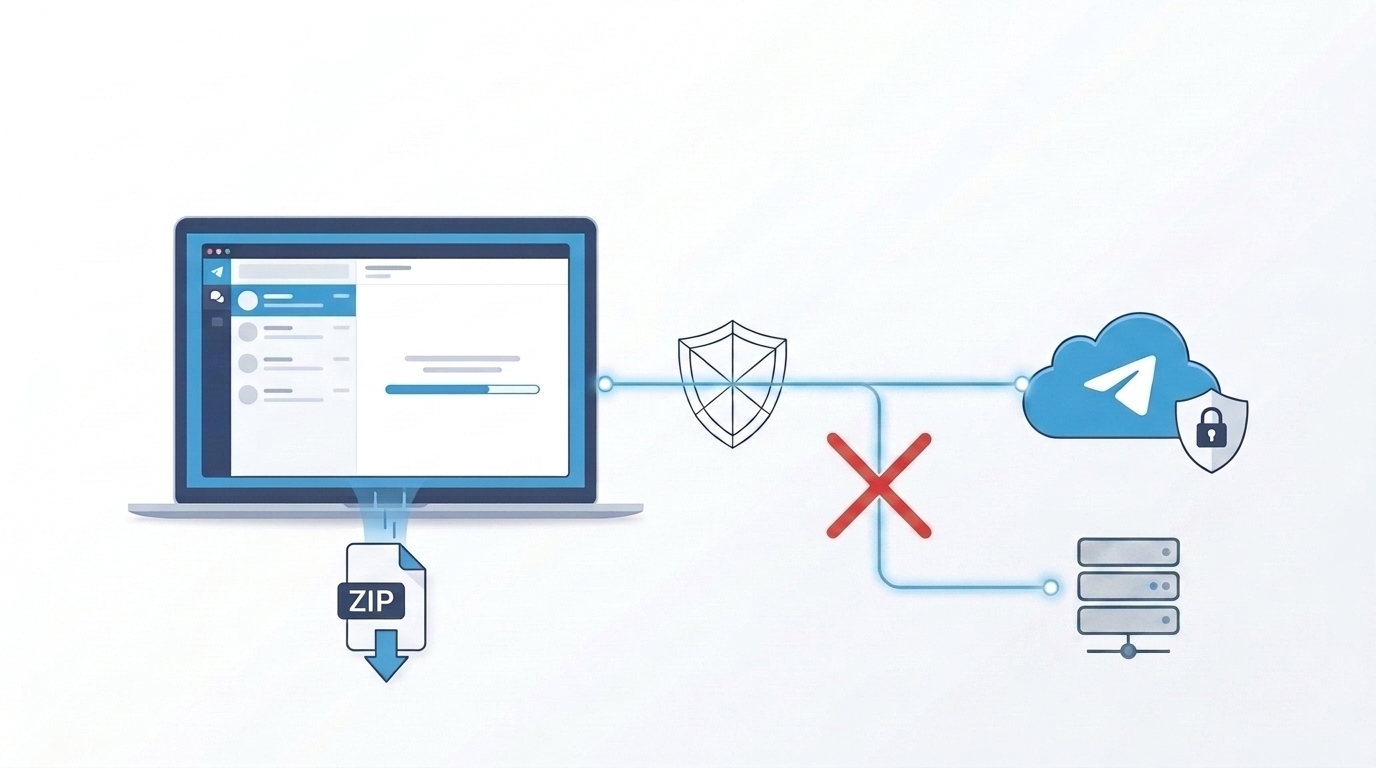
Overview
I built a tool for backing up your entire Telegram chat history with no installation and no sign-up required.
You log in directly in the browser, then pick the chats you want and download them as a zip.
Above all, there’s no server of ours in the middle. Since the browser connects directly to Telegram, your phone number and login code never leave your device.
- Try it now: https://telegram-exporter.plzhans.com
- Download zip: https://github.com/plzhans/telegram-chat-exporter/releases/latest/download/telegram-exporter.zip
Telegram’s official export already supports full backups and per-chat exports well.
This tool isn’t meant to replace that — it exists to fill in the gaps where the official export falls short.
Here’s what sets it apart:
- You can specify a date range to export only the period you need.
- You can export only the specific chats you choose. You can also select multiple chats at once.
- The exported result reads as chat bubbles. You can view it again offline, exactly as it was.
- You can turn on anonymization. You can leave a file behind with names, member IDs, and profile photos hidden.
- The full source is open. You can review the code yourself and build it as-is.
- Since it’s HTML-file based, you can use it anywhere you have a PC or mobile browser.
You can use it right away in the browser with no installation, or download the local zip and open index.html.
There’s no server of ours in between, so your phone number and login code never leave your device.
The implementation details and source code are fully open on GitHub.
https://github.com/plzhans/telegram-chat-exporter
Site deployment is automated with GitHub Actions. When you push code, it’s built and immediately reflected on GitHub Pages.
Usage
No installation is needed.
Just visit the site, or download the release zip and double-click index.html.
Here’s the flow:
Choose how to start.
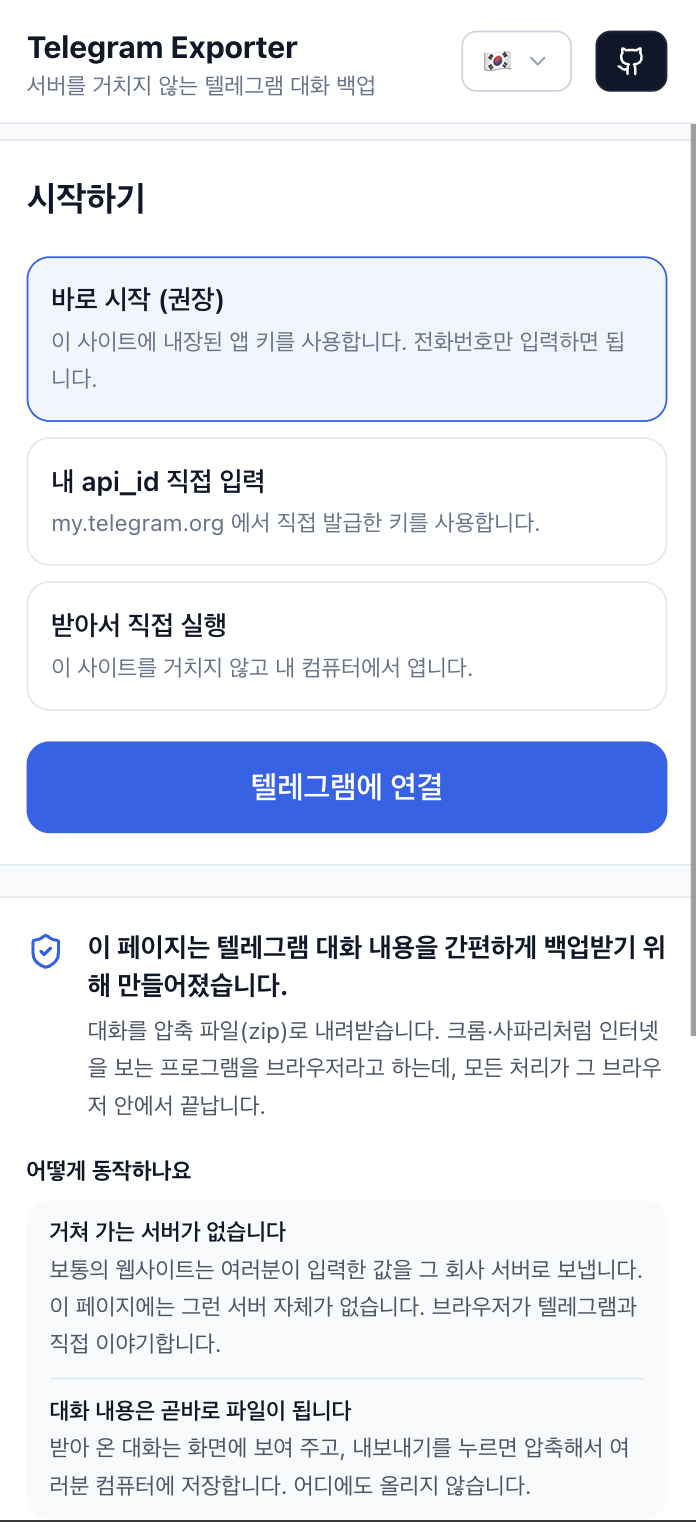
Log in.
Enter your phone number and Telegram sends you a login code. Enter that code. If you have 2FA enabled, enter your password as well.
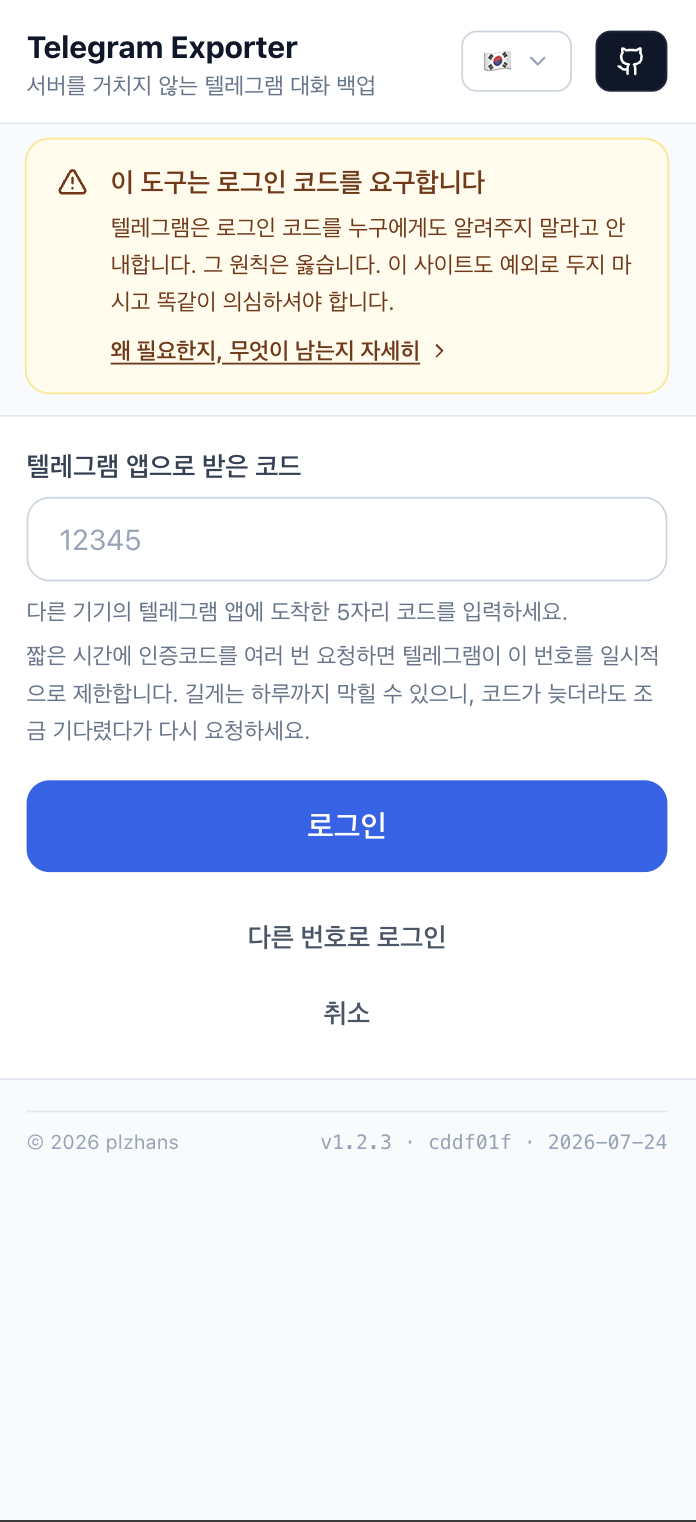
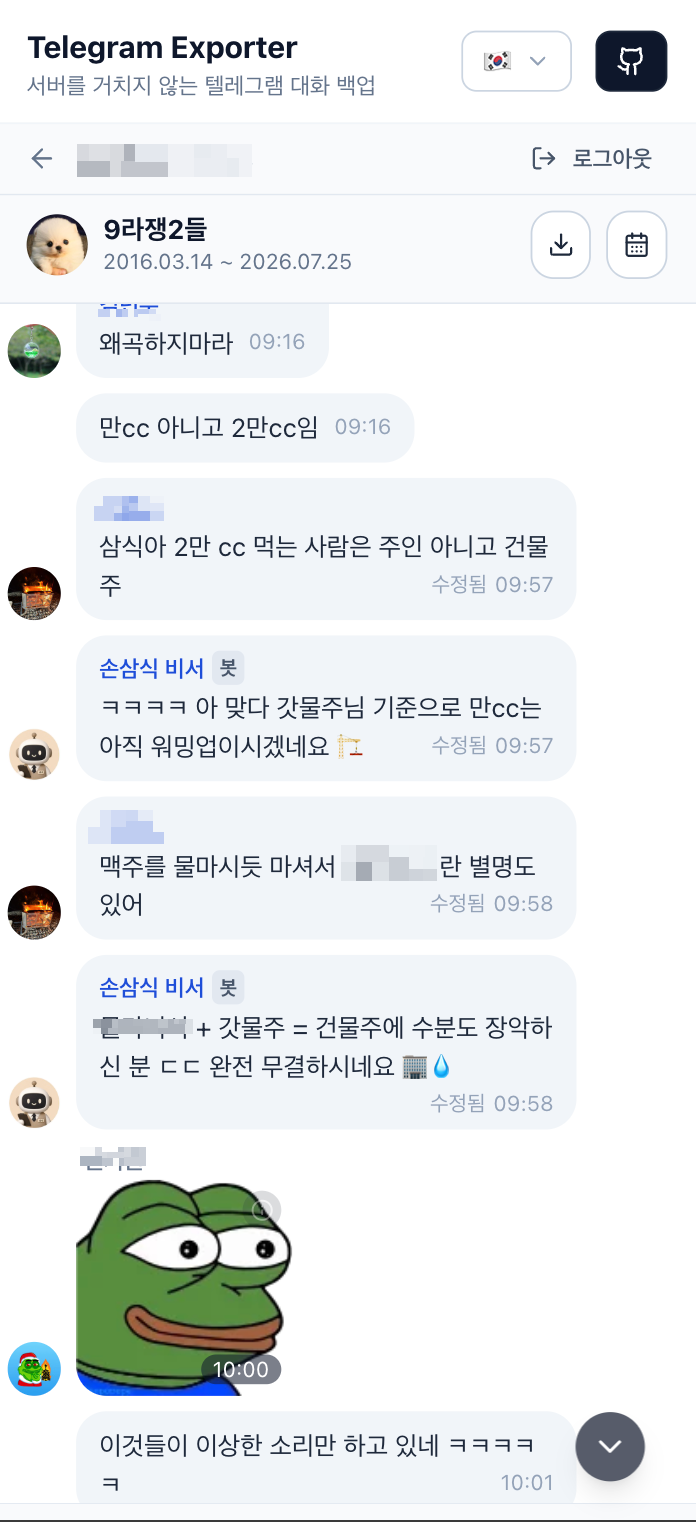
Check the conversation.
When you open a chat, stickers and photos display exactly as they did originally. Click the calendar to jump straight to any date you want.
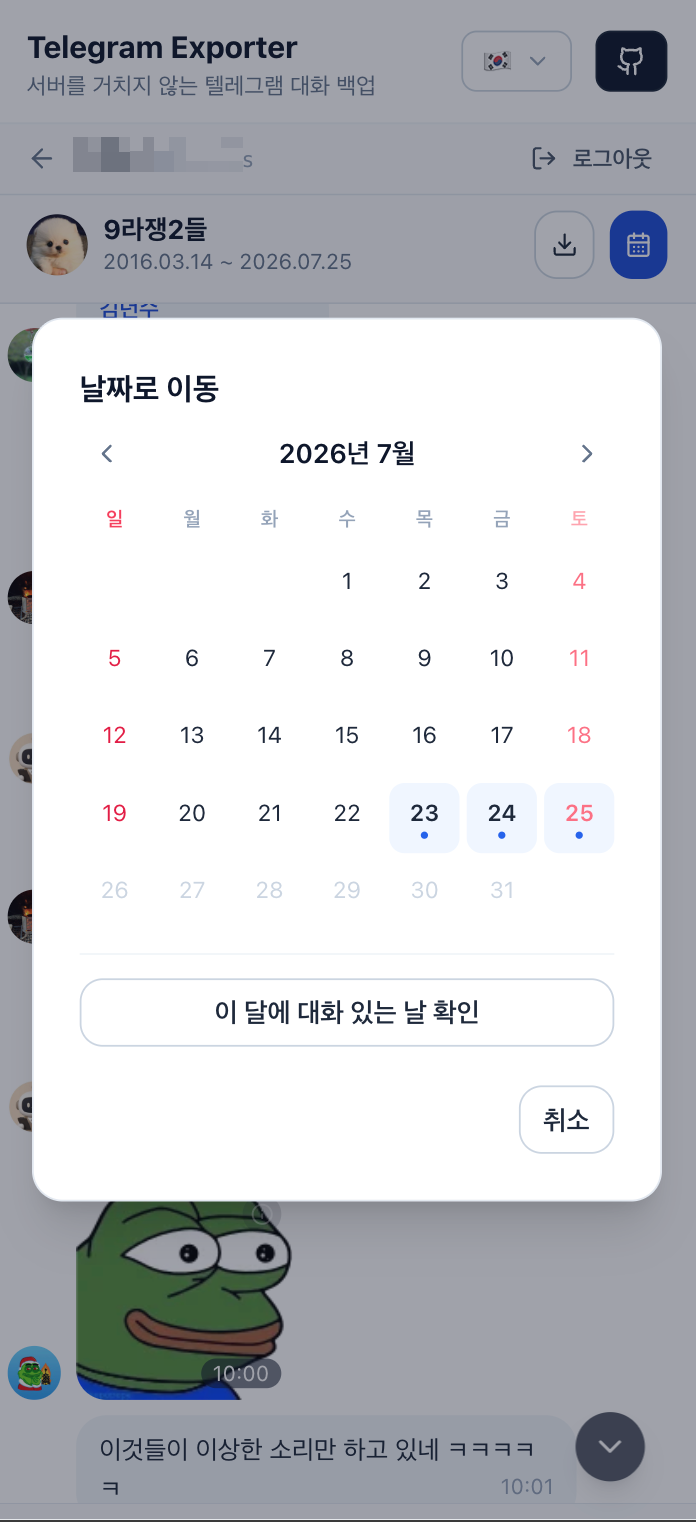
Set a range and export.
Once you choose a period, a progress bar and cancel button appear while the zip is created.
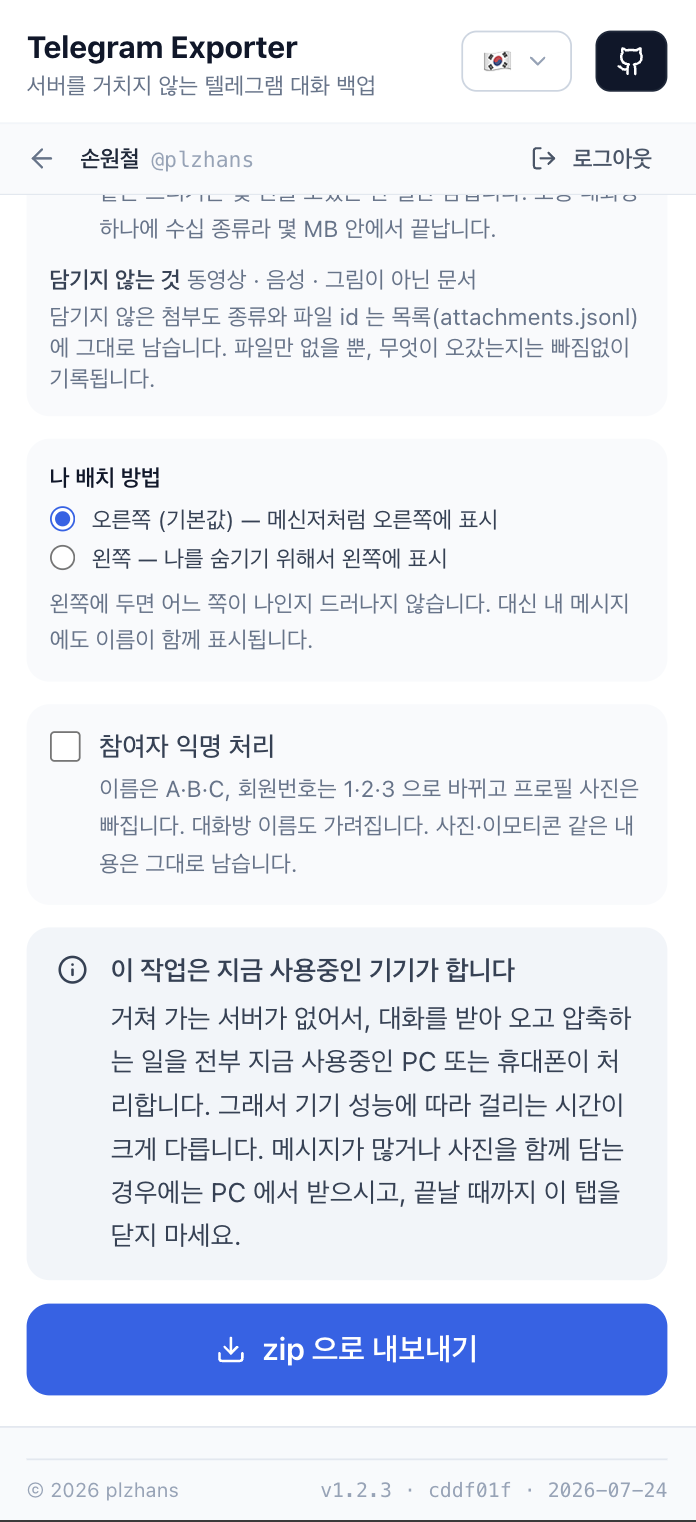
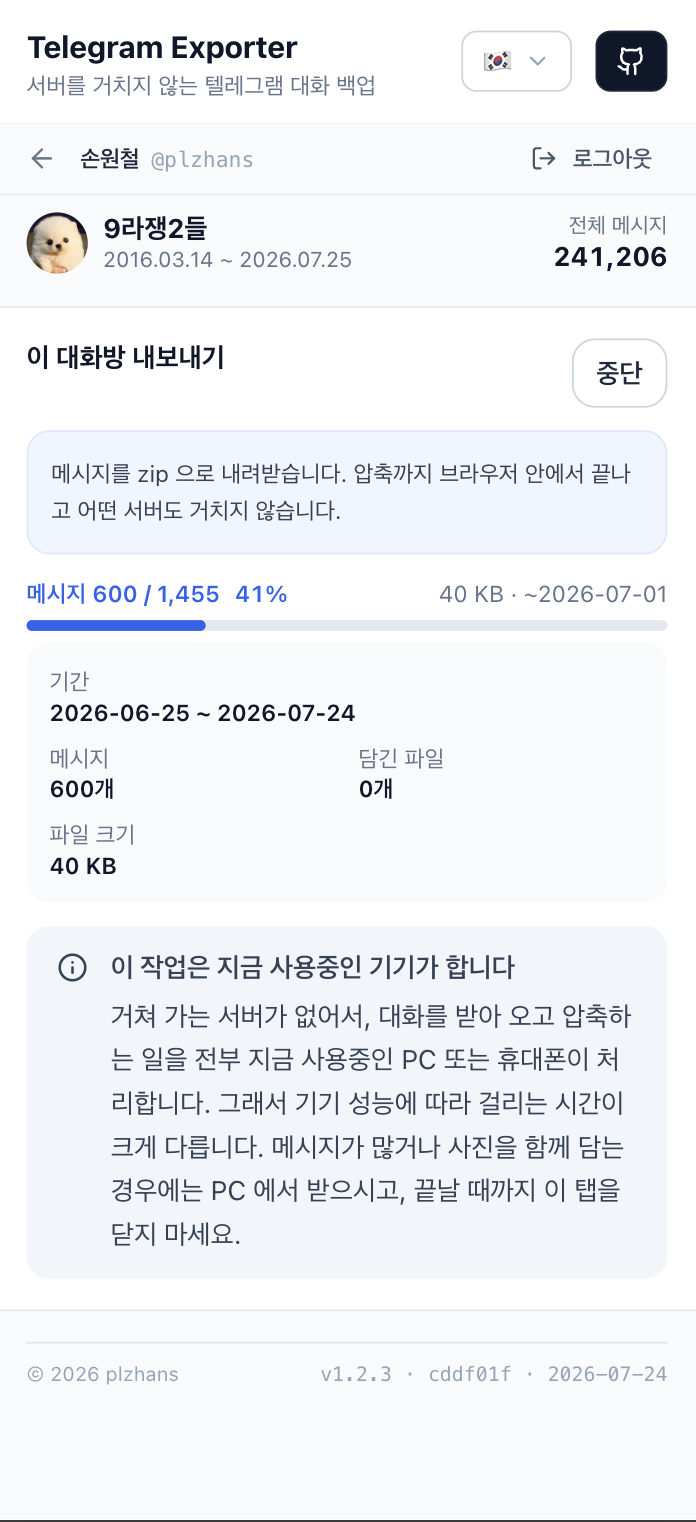
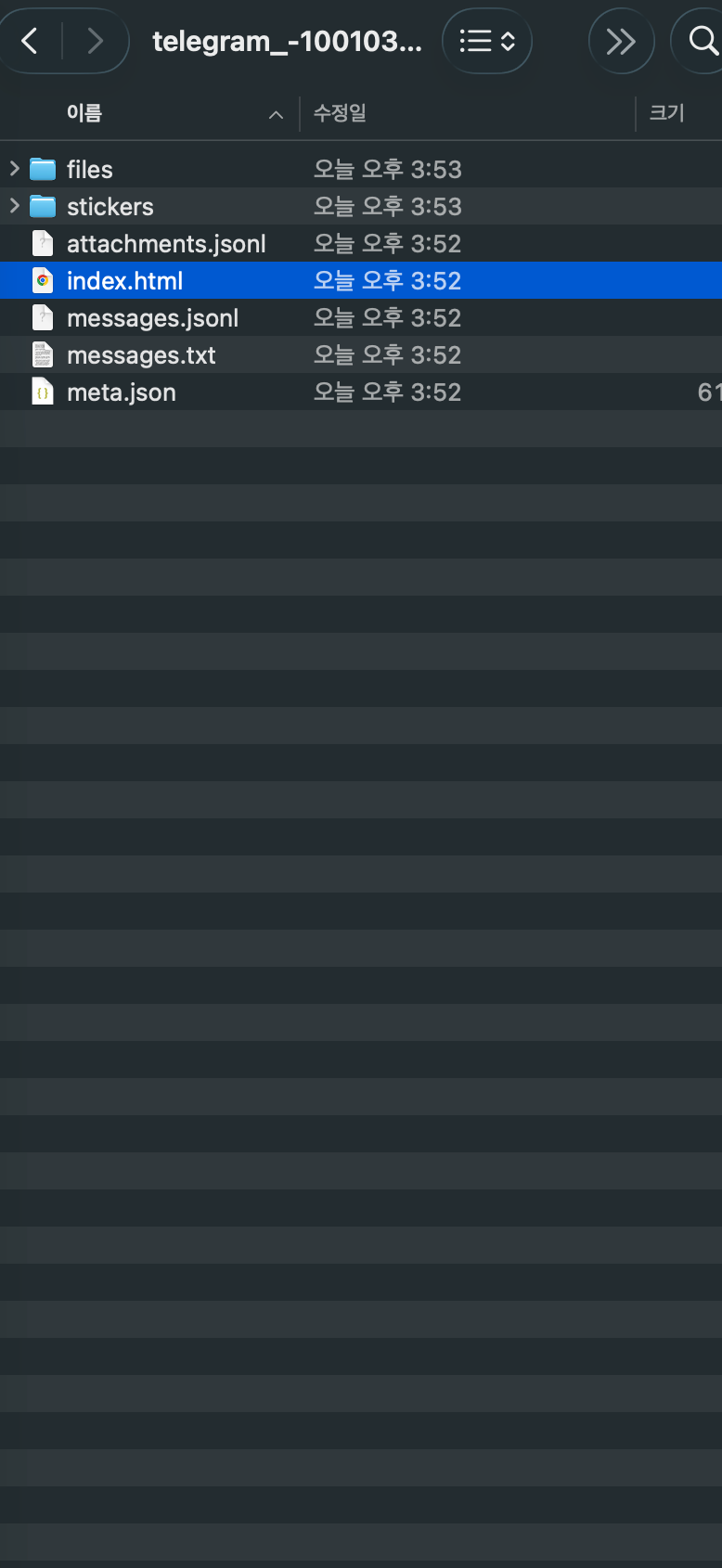
When it’s done, you get telegram-<chat-name>-<date>.zip. Unzip it and open index.html, and the conversation is reproduced exactly as it was. You don’t need the internet or this tool.
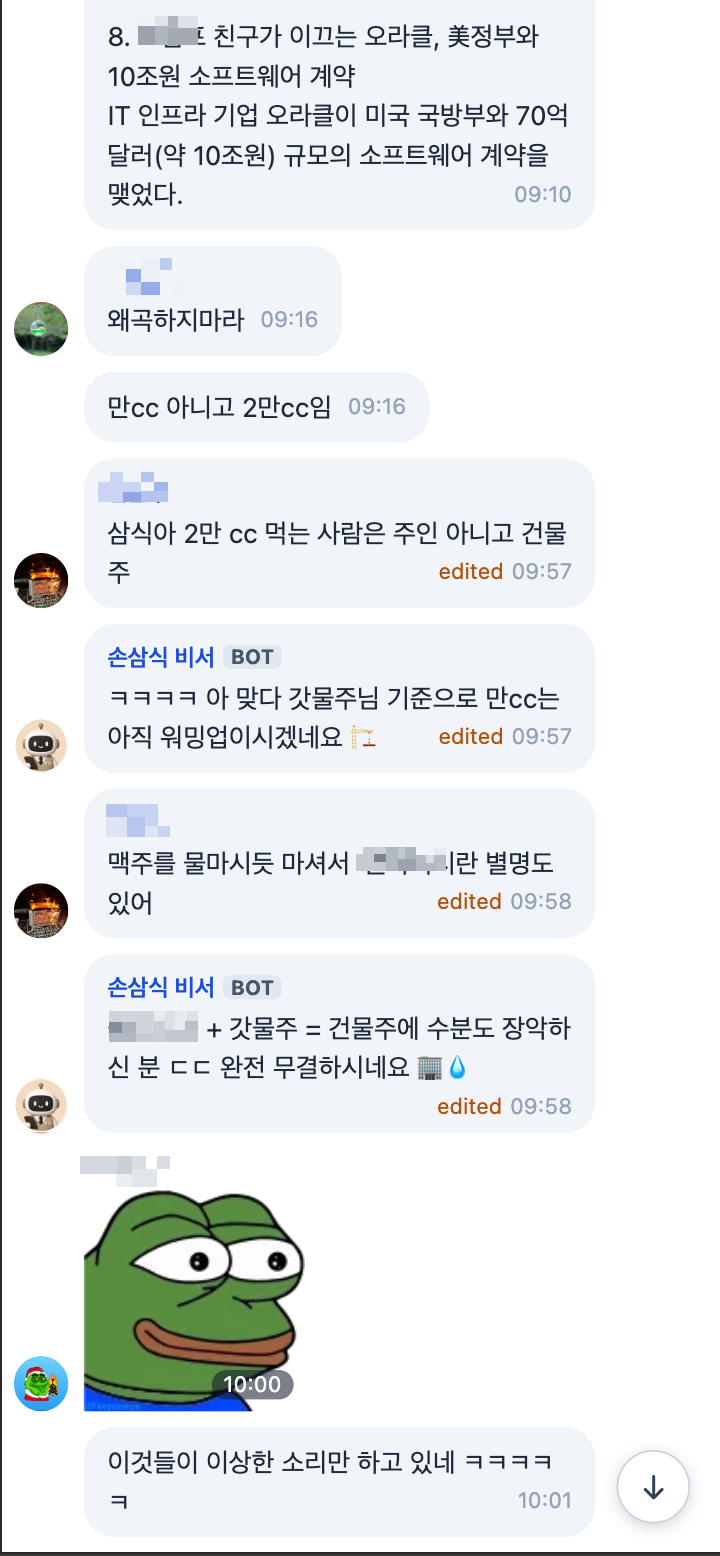
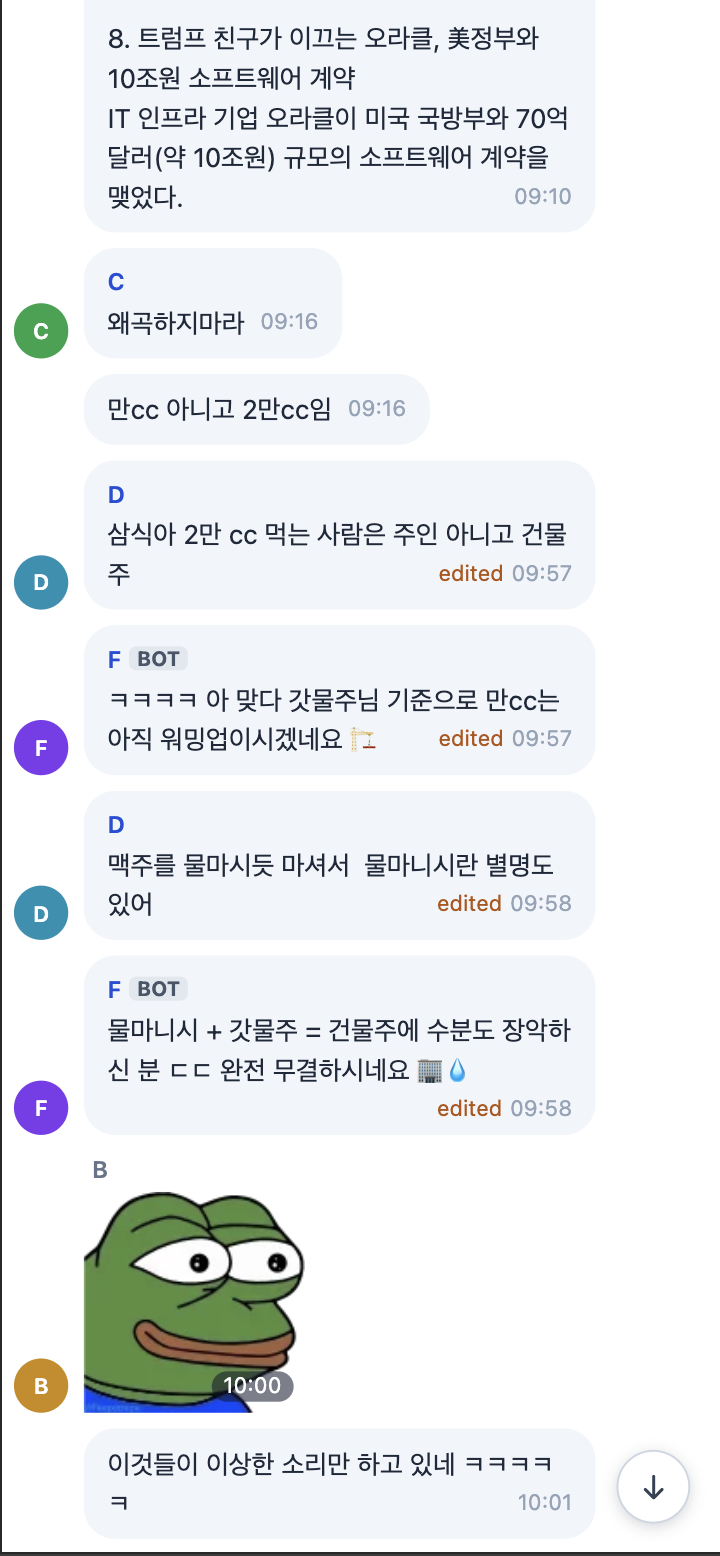
💡 When exporting, you can keep participants’ names as they are, or you can** anonymize them**. The default is to keep names as they are.
When anonymization is turned on, names become A, B, C and member IDs become 1, 2, 3.
Profile photos and chat names are hidden too, so even if you hand the file to someone else, it won’t reveal who’s who.
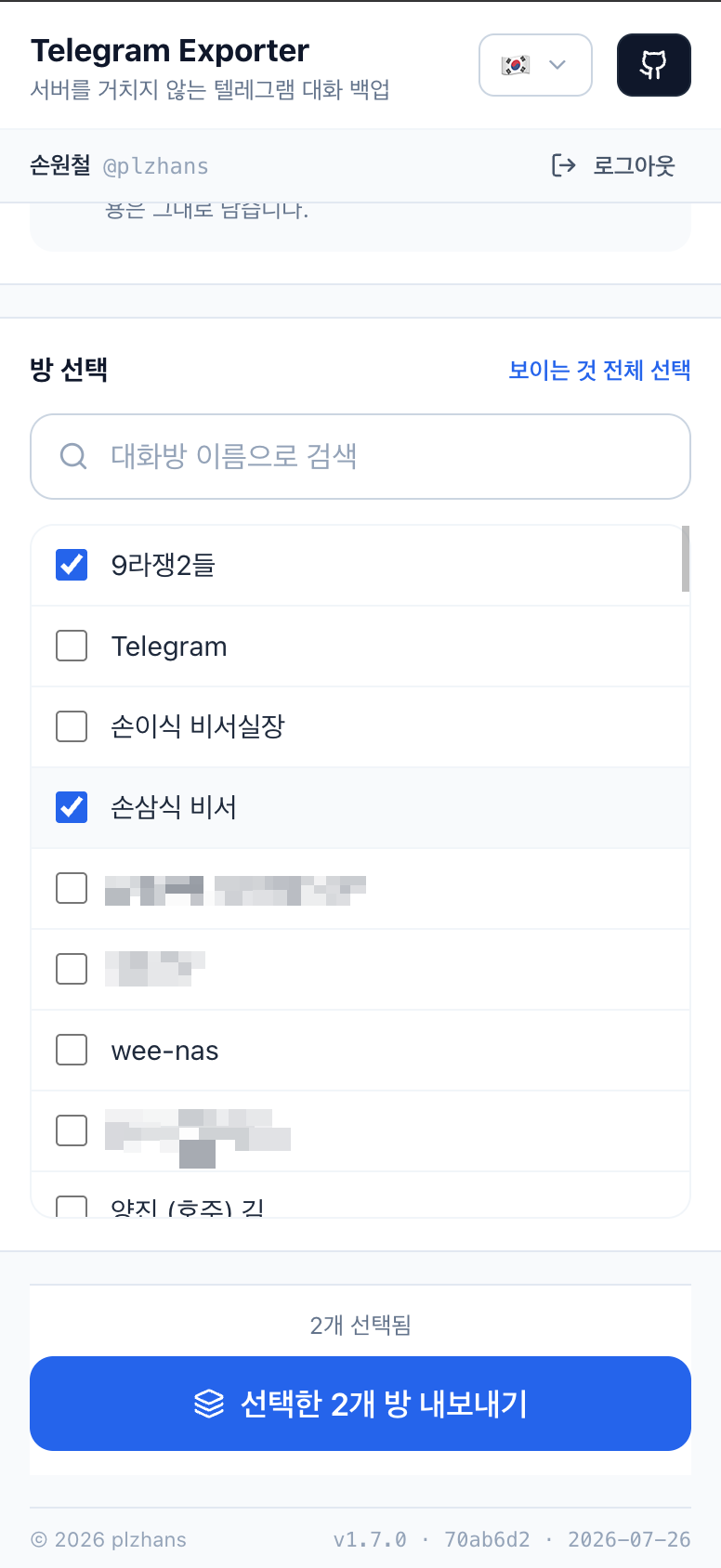
Multiple Chats at Once
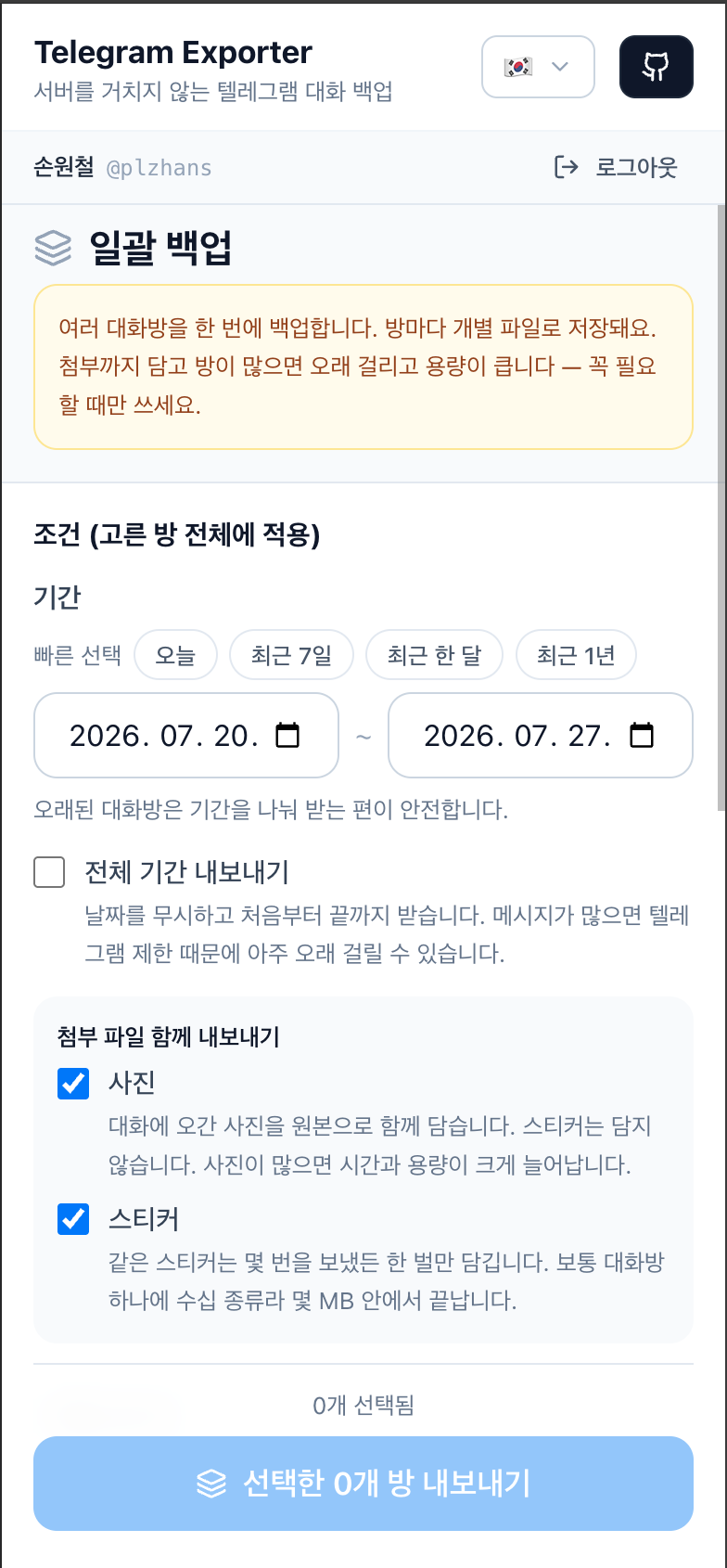
Besides exporting one chat at a time, you can also select multiple chats and export them all at once. A separate file is generated for each chat. This is convenient when backing up everything at once. However, if you include attachments, the more chats you have, the longer it takes and the larger the resulting files.
The same settings are applied at once to all the chats you select. Choose which chats to back up and start, and the chats are exported one by one, in order, as separate zip files.
Why I Built This
The official export already handles full and per-chat backups.
Where I got stuck was somewhere else.
- When I wanted to cut out just a specific period
- When I wanted to quickly save just a few chosen chats
- When I wanted to read the exported file back as a conversation
- When I wanted to hide names and faces for evidence or sharing purposes
The goal was to make those four things possible right in the browser.
No installation, no sign-up, and the result comes out as a single zip file.
It Has to Connect as a User Account
Telegram has two kinds of APIs: the commonly used Bot API, and the MTProto client API that Telegram apps actually use.
To back up, you need to read past message history. But the Bot API can’t read past message history. Bots can’t even access private chats. In the end, MTProto, which connects as a user account, is the only way.
It Has to Work With Nothing Installed
Tools that handle MTProto are usually Python or Node scripts. That means installing a runtime and opening a terminal. You’d be setting up a whole development environment just to do one backup.
Running it in the browser eliminates that step entirely. I brought over the exact method (WebSocket) that web.telegram.org actually uses. So there’s no need for a relay server in between, either.
Credentials Must Never Be Handed to Anyone
This is the crux of it. This tool asks for the user’s phone number and login code. Telegram makes it explicit: don’t share the login code with anyone. That warning is correct.
If you build this as a “service,” that phone number and code pass through someone’s server. But if there’s no server at all, there’s nowhere for them to pass through. Users can verify this for themselves in the developer tools. That’s because the browser’s CSP (connect-src) blocks any connection other than the Telegram WebSocket. Even if this code were malicious, it couldn’t exfiltrate anything.
How It Works Without a Server
It uses the MTProto client API, not the Bot API. Running this in the browser is exactly what web.telegram.org already does.
The key is WebSocket.
1wss://*.web.telegram.org/apiws
WebSocket connections aren’t subject to CORS policy. That lets the browser connect directly to Telegram’s servers. No proxy or relay server is needed. That means zero lines of backend code. The deployment is just static HTML/JS/CSS files. Upload them to any static hosting and you’re done.
Why GramJS, and Why I Pinned It to 2.26.21
Handling MTProto in the browser required a library. I chose telegram (GramJS).
The interesting part is that this package is in an archived state. Maintenance has moved to a fork called teleproto. Yet I still use GramJS. That’s because teleproto is a Node-oriented fork that stripped out browser support.
- GramJS uses
crypto.subtle(WebCrypto). teleproto only uses Node’scrypto. - In the browser, GramJS’s default transport is WSS. teleproto’s is raw TCP.
- GramJS’s browser bundle size is also much smaller (234KB vs. 455KB gzipped).
Switching to teleproto would mean swapping out the transport layer myself. I’d also have to accept pure-JS cryptography. In particular, PBKDF2-SHA512 for 2FA becomes noticeably slower. So I stayed with GramJS, even accepting the risk of it being archived.
The Trap: One Patch Version Changes the Whole Platform
There’s an issue here that really ate up my time. GramJS keeps the Node build and the browser build under the same package name. It distinguishes between the two using npm’s dist-tag.
A dist-tag is just a label npm attaches to a specific version. It has nothing to do with version ordering. latest doesn’t mean “the newest” either — it’s simply npm’s default label. npm install telegram fetches exactly this latest.
latest→2.26.22→CryptoFile.jsdoesrequire("crypto"). It’s Node-only.browser→2.26.21→require("./crypto/crypto"). It uses WebCrypto.
If you use latest in the browser, it dies mid-way through the auth key exchange like this:
1a.default.randomBytes is not a function
So I pinned it exactly, without a caret (^), in package.json.
1"telegram": "2.26.21"
💡 Here, the patch version doesn’t mean “how much has changed” — it means “which platform this build targets.” Adding
^or runningpnpm updatebumps it to2.26.22(the Node build). Then the app won’t even launch. I’ve also set Dependabot to ignore all major, minor, and patch updates for this package — while keeping security update signals alive.
Trust Model: “Don’t Trust, Verify”
For someone seeing this tool for the first time, the site presents a situation where “an unfamiliar webpage is asking for my phone number and login code.” Being suspicious is the normal reaction. So this project made giving that suspicion a verifiable answer its top priority.
The Browser Enforces It via CSP
connect-src is open only to the Telegram WebSocket.
1default-src 'none'; script-src 'self'; style-src 'self' 'unsafe-inline';
2img-src 'self' data: blob:; font-src 'self';
3connect-src wss://*.web.telegram.org wss://*.web.telegram.org:443;
4form-action 'none'; base-uri 'none'; frame-ancestors 'none'
Even if the code were malicious, it couldn’t send the phone number, code, or messages to another server. Anyone can verify this in the developer tools’ Network tab. The connect-src string shown on screen is a value extracted directly from the CSP that was just injected. If it were written by hand, it would drift out of sync every time analytics is toggled on or off. Since that string is the very basis of this app’s trust, it’s extracted programmatically.
No eval in the Bundle
I narrowed the Node polyfills down to just buffer. That lets script-src 'self' hold without unsafe-eval. Polyfilling crypto drags in crypto-browserify, which chains through asn1.js → vm → eval, and that trips up CSP. The browser build uses WebCrypto, so it isn’t needed in the first place.
Sessions Aren’t Stored in localStorage
When you enable “Stay logged in on this tab,” the session string goes only into sessionStorage. The session string is, in effect, the authentication key itself. Putting it into storage that persists until explicitly cleared would be equivalent to handing over the entire account on a shared PC or shared browser profile.
On top of that, I added an idle expiration (60 minutes by default). While the tab stays alive, the expiration time is pushed forward every minute. If you step away, it simply expires. That said, this doesn’t guarantee “closing the browser always clears it” — session restore or tab duplication can bring sessionStorage back. A TTL only narrows the exposure window; it can’t eliminate it. The sure way is to log out, which cuts the session itself off from the account.
Making Sessions Identifiable
It shows up in Telegram’s list of active sessions as Telegram Exporter (browser). After the backup is done, the user immediately knows which session to end. The “Log out + End session” button in the app calls auth.LogOut, which removes this session from the account.
Real-World Problems From Exporting Long Chat Histories
Exporting an old chat in its entirety breaks in several places. Here’s how I handled each one.
Not Dying to FLOOD_WAIT
Scanning a long history triggers a rate limit from Telegram lasting hundreds of seconds. GramJS’s floodSleepThreshold defaults to 60 seconds. If a longer limit comes in, it doesn’t sleep — it throws an exception instead. That means an hour-long job can be wiped out by a single 90-second wait. So during export, I raise this value to 15 minutes, then restore it when done.
Scanning From the Oldest First
Telegram’s default order is newest-first. Taking it as-is stacks the file in reverse order, making it unreadable. But collecting everything in memory and reversing it defeats the purpose of streaming. So I use reverse: true to scan from the oldest message first. I also add a waitTime: 1 (1 second) gap between requests. Without it, large chats hit FLOOD_WAIT almost immediately.
Not Buffering Everything in Memory
If the File System Access API (showSaveFilePicker) is available, the compressed chunks are streamed straight to disk. If it’s not available (Firefox or Safari), everything is gathered and downloaded as a Blob instead, and the screen indicates this. This picker only opens in response to a user gesture, so it needs to be called at the very startof the click handler. If it’s called after the export has already begun, the gesture has already been consumed and the call gets rejected.
The “Looks Frozen” Problem
While waiting on FLOOD_WAIT, GramJS sleeps silently. So the numbers don’t move. If there’s no progress for more than 8 seconds, the tool shows “not stalled — waiting on a rate limit.” Without this, users mistake normal behavior for a failure and close the tab.
Showing the Scale Up Front
Two requests up front show “how many messages in total, and from when to when.” The default export range is the last 30 days. That’s because if the entire range were the default, a single click could kick off a job that takes hours.
The Exported Output
You get a single zip file.
1telegram-<chat-name>-<date>.zip
2├── index.html         압축 풀고 처음 여는 파일. 대화 그 자체처럼 읽힌다
3├── messages.jsonl     한 줄에 한 메시지. 기계가 다시 읽는 원본 형태
4├── messages.txt       사람이 읽는 형태. 오래된 것부터 시간순
5├── attachments.jsonl  첨부의 종류와 크기
6└── meta.json          방 정보, 메시지 수, 내보낸 시각
index.html is complete as a single file. All styles are inline, so it opens without the internet and without this tool. And it contains no script. If a document presented as evidence contained code, that would leave room for the argument that “it just happened to render that way at the time.” It shows the same thing no matter when you open it.
Compression uses fflate’s synchronous streaming API. JSZip and fflate’s asynchronous API spin up a Web Worker via a blob URL. That requires opening worker-src blob: in the CSP. The synchronous API occupies the main thread. So control is handed back to the event loop every 200 messages. That’s what keeps the progress display and cancel button alive and responsive.
What’s Next
Here’s what’s not done yet.
- Downloading the remaining attachments, like documents and videos. Images and emoji (stickers) are already saved. For other attachments like document files or videos, only the type and size are kept — the actual file content isn’t downloaded yet.
upload.getFilechunks need to be assembled. Progress is tracked in issue #26. - Resuming after interruption. Storing
offset_idin IndexedDB would let the export resume even if the connection drops.
Looking back, most of the decisions I made in this project converge on a single question: “How can the user verify this for themselves?” Removing the server, using CSP as the basis for trust, making sessions identifiable — it’s all the same principle. Even the decision not to hide the shared api_id was an answer to that same question. For a tool that handles credentials, “just trust me” is the weakest possible guarantee. A rule the browser enforces for you is far stronger.