
Mac Office Activation Guide | Install LTSC with Volume License VL Serializer
This article was originally written in Korean and automatically translated into English using AI.
Summary: A step-by-step guide to installing and activating Microsoft Office on Mac using a volume license. Covers LTSC installer selection, VL Serializer application, and activation verification.
Overview
License activation is required when installing Microsoft Office on Mac.
You can activate with a Microsoft 365 account or install a specific version and enter a serial key.
If your organization has a volume license, the VL Serializer installation method is recommended.
Source: https://github.com/alsyundawy/Microsoft-Office-For-MacOS
Installation Steps
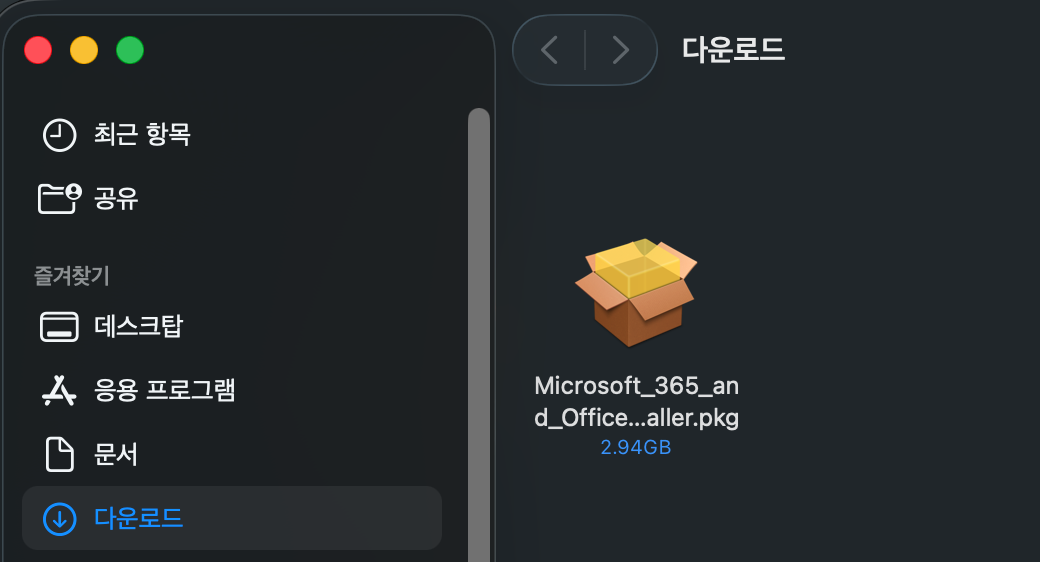
- Choose the Office version to install
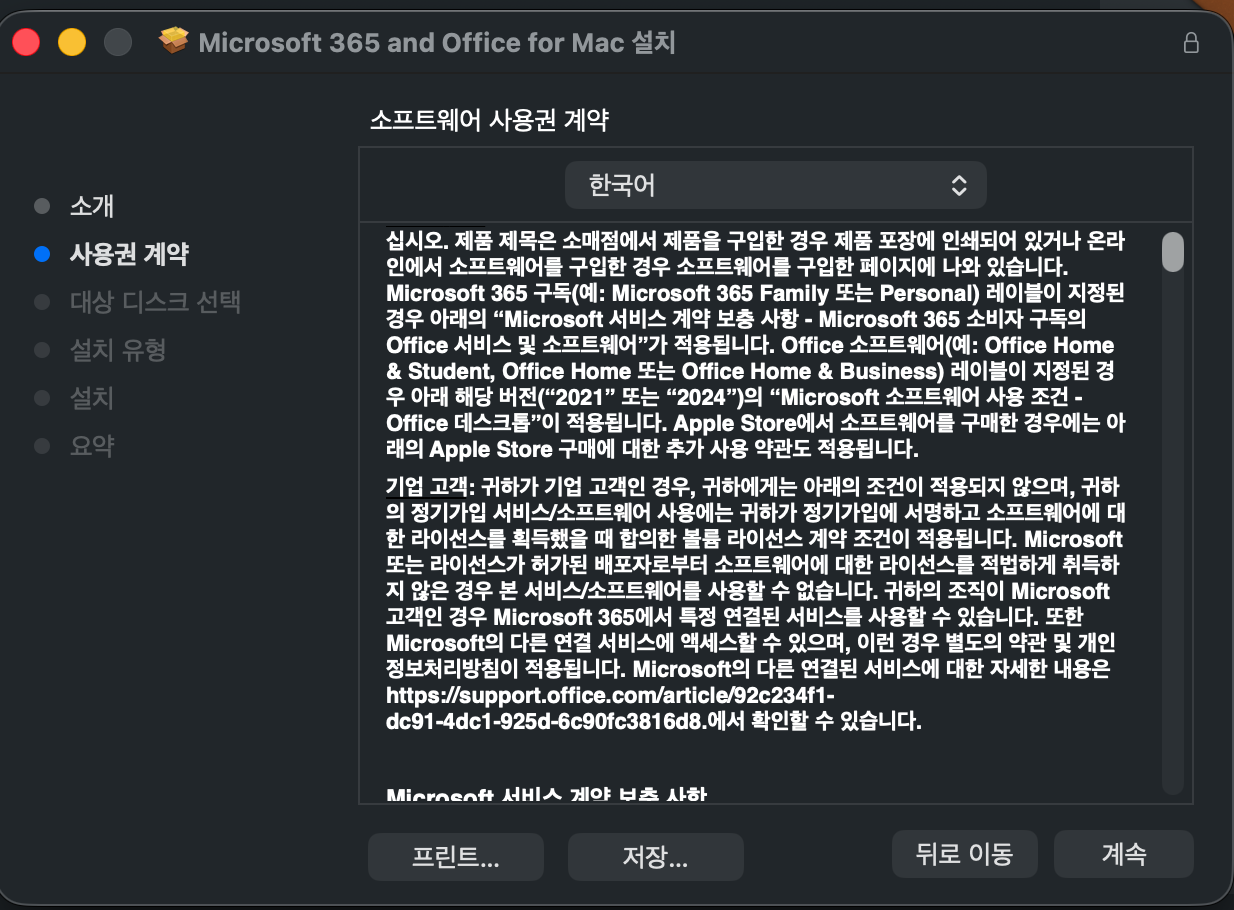
- Proceed with the installation
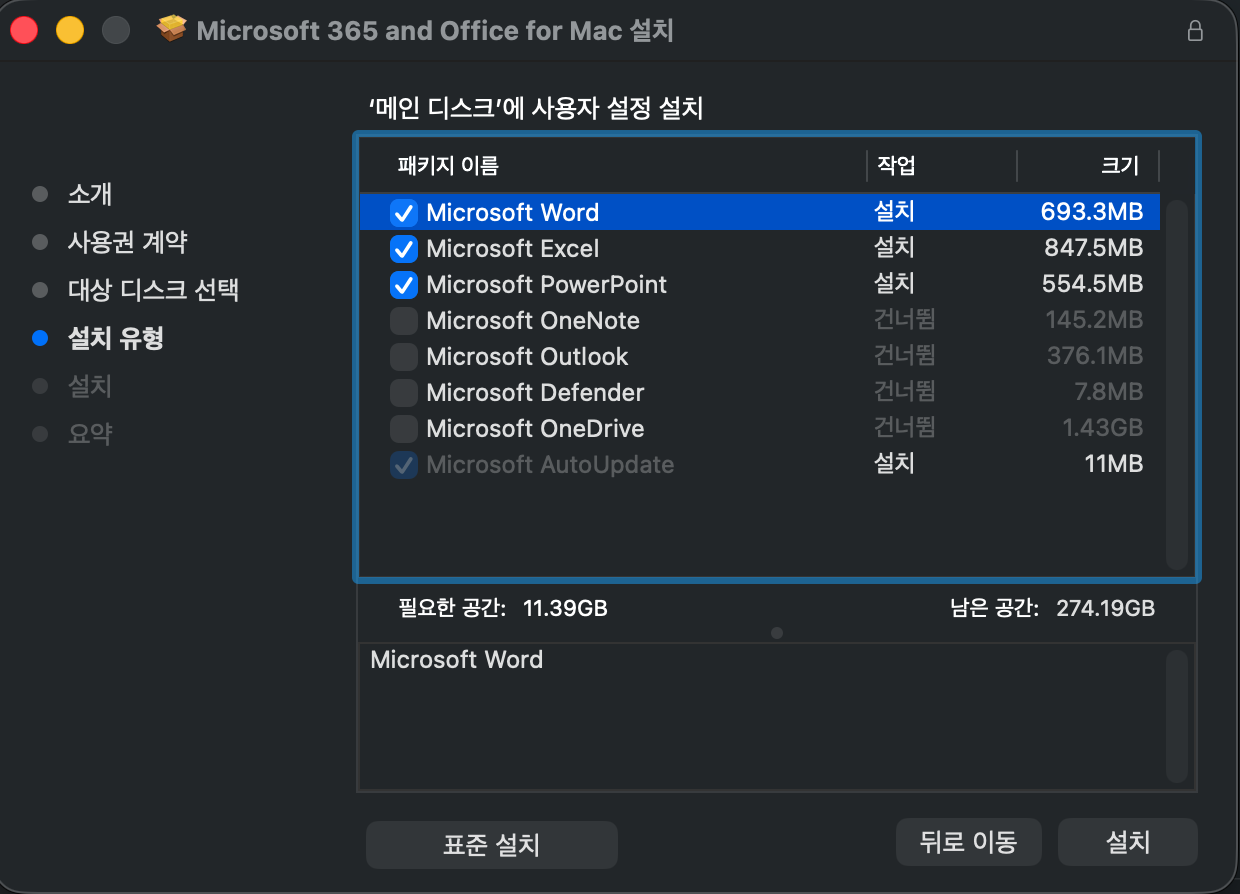
- You can select and install only the apps you need
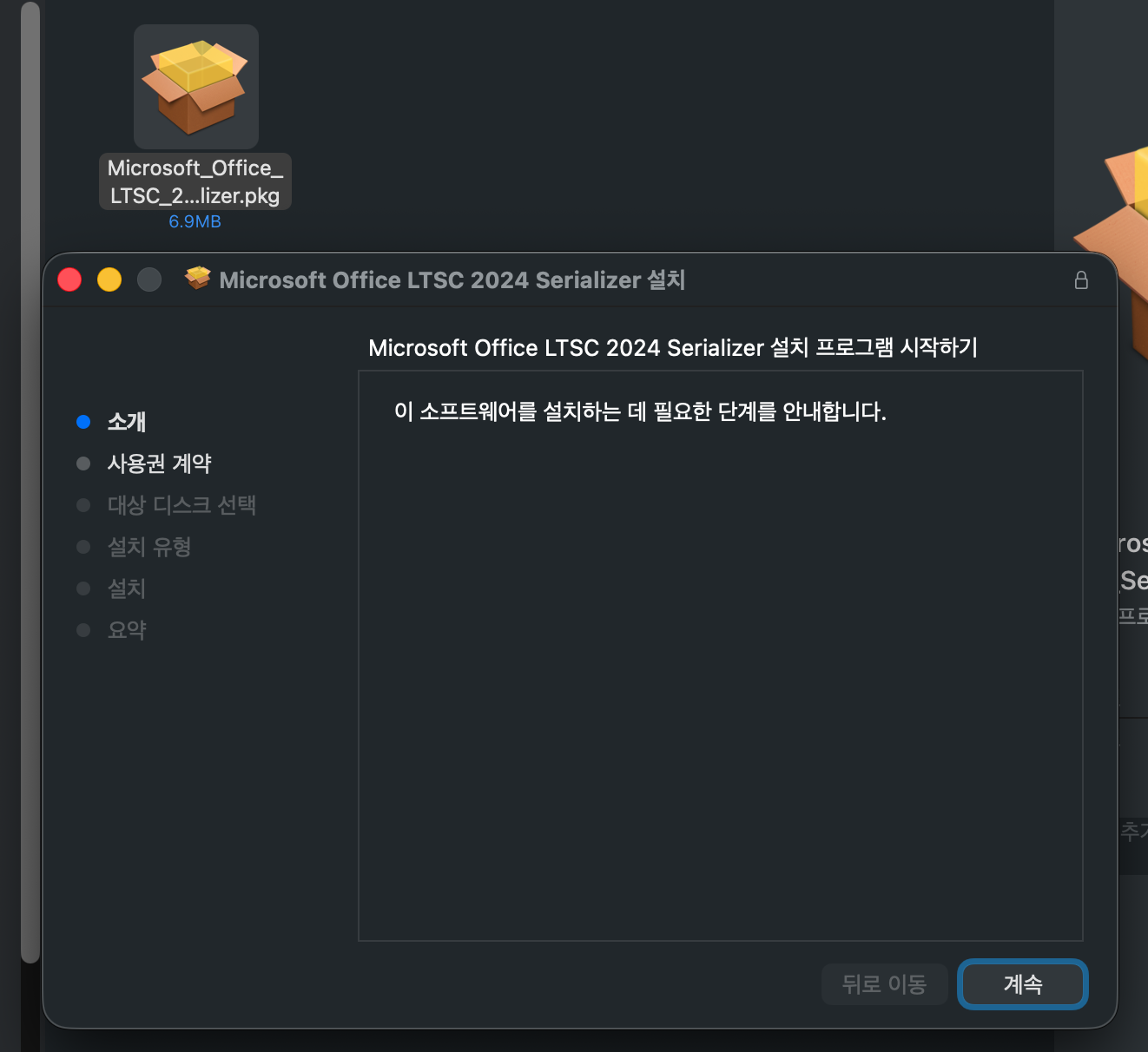
- Download the Office VL Serializer
- Example: Office 2024 LTSC VL Serializer
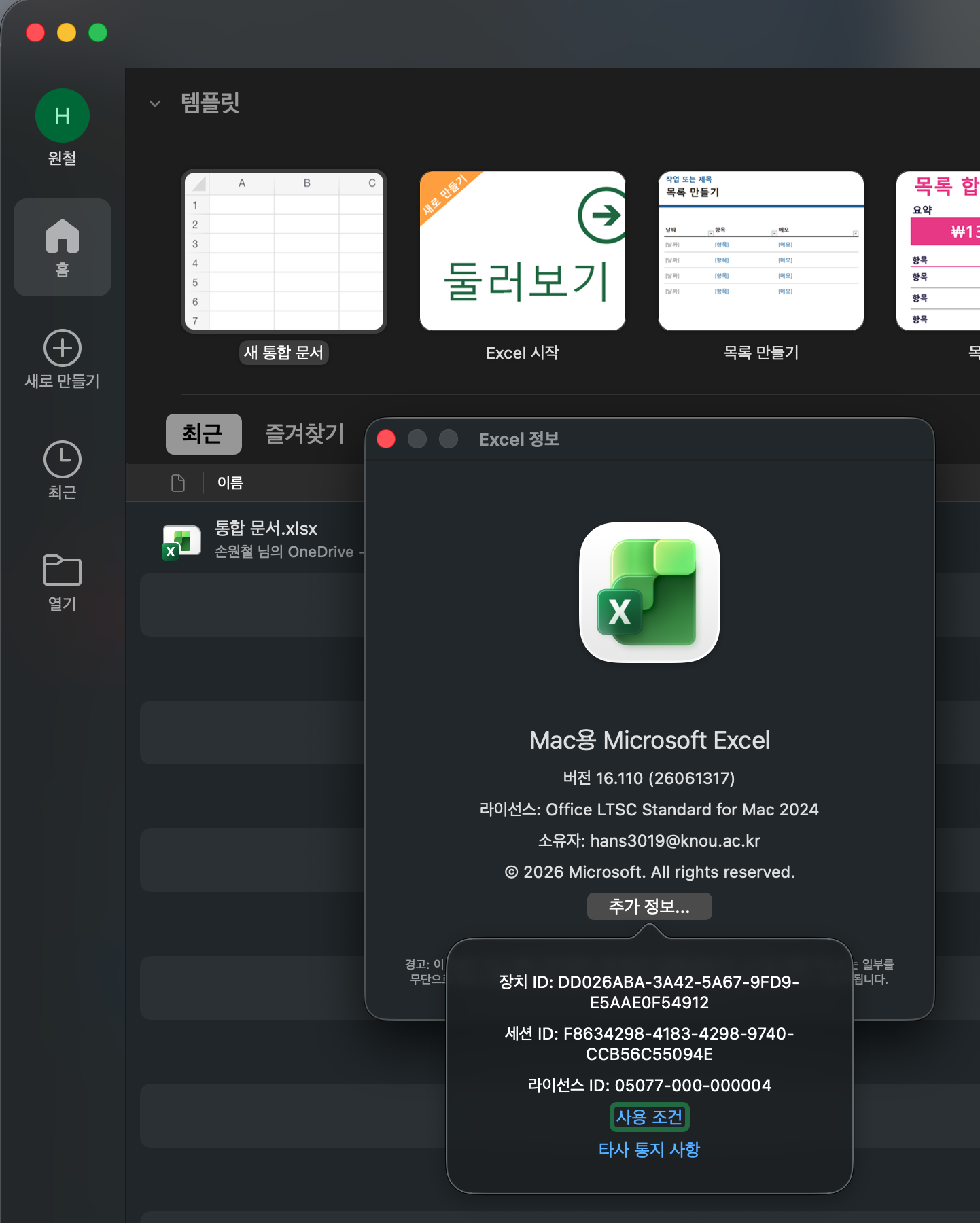
- Run the Serializer to apply the volume license
- Launch an Office app to verify the activation status
Installation Screenshots
Installation
Customization
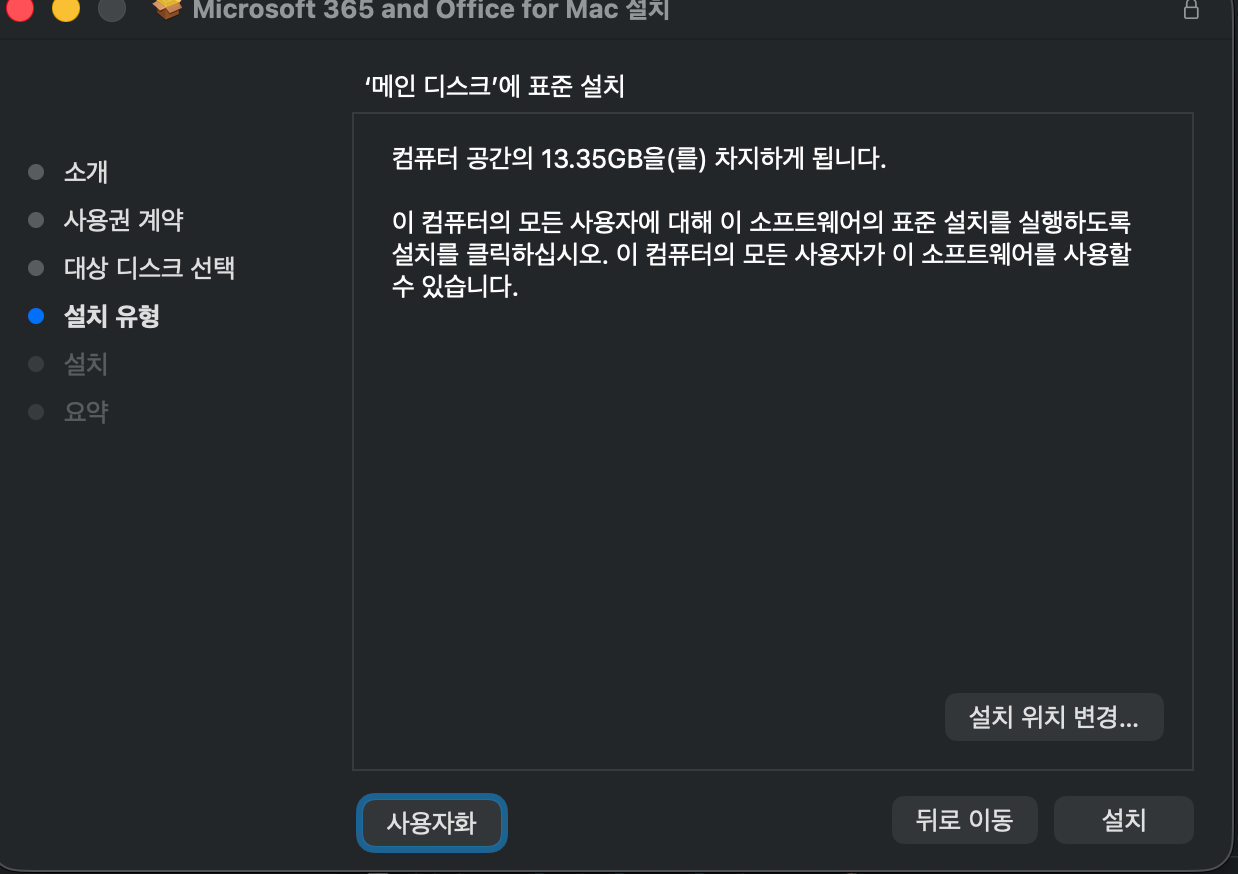
Install only what you need
Download the Serializer
Run and verify activation
Optional Settings
Disable Telemetry
1defaults write com.microsoft.Word SendAllTelemetryEnabled -bool FALSE
2defaults write com.microsoft.Excel SendAllTelemetryEnabled -bool FALSE
3defaults write com.microsoft.Powerpoint SendAllTelemetryEnabled -bool FALSE
4defaults write com.microsoft.Outlook SendAllTelemetryEnabled -bool FALSE
5defaults write com.microsoft.onenote.mac SendAllTelemetryEnabled -bool FALSE
6defaults write com.microsoft.autoupdate2 SendAllTelemetryEnabled -bool FALSE
7defaults write com.microsoft.Office365ServiceV2 SendAllTelemetryEnabled -bool FALSE
Disable Cloud Sign-in Features
1defaults write com.microsoft.Word UseOnlineContent -integer 0
2defaults write com.microsoft.Excel UseOnlineContent -integer 0
3defaults write com.microsoft.Powerpoint UseOnlineContent -integer 0
This post was written in Notion and converted to Hugo via Github Action.
Copyright © plzhans. All Rights Reserved. | Powered by github.com/plzhans/hans-blog