
How to Issue a Free SSL Certificate on Synology DSM | Automatic Let’s Encrypt Renewal with acme.sh + Cloudflare DNS
Summary: A guide to issuing and auto-renewing a Let's Encrypt free SSL certificate on Synology DSM using acme.sh and Cloudflare DNS validation. Covers synology_dsm deploy-hook setup and troubleshooting 2FA and hostname errors.
Overview
Directly exposing DSM to the internet is risky, so using a VPN such as Tailscale, OpenVPN, or WireGuard is recommended.
In an environment where external access is blocked and the domain is mapped to a private IP, registering a free certificate via HTTP validation is difficult.
This article explains how to issue a Let’s Encrypt free SSL certificate on Synology NAS (DSM) using acme.sh and automatically install it on DSM.
Prerequisites
- Domain: e.g.
plzhans.com - DNS: Cloudflare (recommended)
- An account for DSM auto-installation (a non-2FA account is required, see below)
Issuing a Cloudflare API Token (Minimum Permissions)
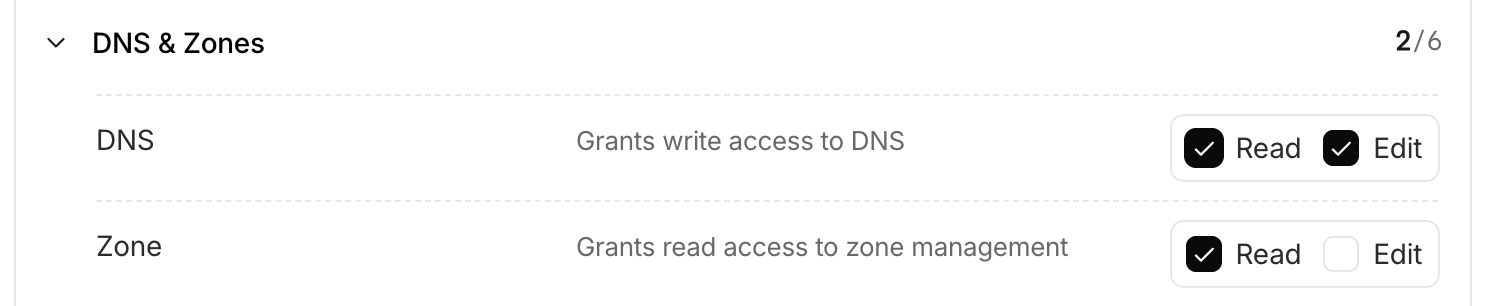
For security, create a token with minimum permissions scoped to a specific domain.
Minimum Required Permissions
- DNS: Read, Edit
- Zone: Read
Issuing a Certificate (acme.sh)
Test with the Staging Server First
Repeated requests to the production server may result in rate limiting. Use the staging server until you have a successful cycle.
--server letsencrypt_test- The
--issueoption is required for issuance
 1#!/bin/bash
 2
 3export CF_Token="cloudflare_api_token"
 4
 5acme.sh \
 6  --server letsencrypt_test \
 7  --log --debug \
 8  --home ~/ssl \
 9  --issue \
10  --dns dns_cf \
11  -d "plzhans.com" \
12  -d "*.plzhans.com"
Production Issuance
1acme.sh \
2  --server letsencrypt \
3  --log --debug \
4  --home ~/ssl \
5  --issue \
6  --dns dns_cf \
7  -d "plzhans.com" \
8  -d "*.plzhans.com"
Verify Issuance
1acme.sh \
2  --home ~/scripts/ssl \
3  --list
4
5# execute result
6# Main_Domain	KeyLength	SAN_Domains	CA	Created	Renew
7# plzhans.com	"ec-256"	*.plzhans.com	LetsEncrypt.org	2026-05-15T04:59:58Z	2026-07-13T04:59:58Z
Notes
- The token information used is saved in the
account.conffile - Domain configuration is saved in e.g.
~/ssl/plzhans.com_ecc/plzhans.com.conf
Installing the Issued Certificate on DSM (deploy-hook)
acme.sh supports synology_dsm as a deploy-hook.
- If no certificate exists on DSM, the
SYNO_Create="1"value is required to create one - If a test certificate has already been issued, you may need to delete it or use the
--forceoption
Removing an Existing Certificate (If Needed)
1acme.sh --remove --home ~/ssl -d "plzhans.com"
DSM Auto-install Script Example
 1#!/bin/bash
 2
 3# syno server
 4export SYNO_Hostname="localhost"
 5export SYNO_Scheme="https"
 6export SYNO_Port="5001"
 7
 8# syno account
 9export SYNO_Username='system-script'
10export SYNO_Password='secret'
11
12export SYNO_Create="1"
13
14acme.sh \
15  --deploy \
16  --insecure \
17  --home ~/ssl \
18  --log --debug \
19  --deploy-hook synology_dsm \
20  -d "plzhans.com"
21
22# execute result
23# ...
24# ret='0'
25# Success
Issue: 2FA Blocking Automation
If the SYNO_Username account has 2FA enabled, it will interfere with automation.
Solution
- Create a separate account (admin account required)
- Operate with minimum security measures for automation
- No external access
- Grant only the necessary permissions
- Disable 2FA for that account
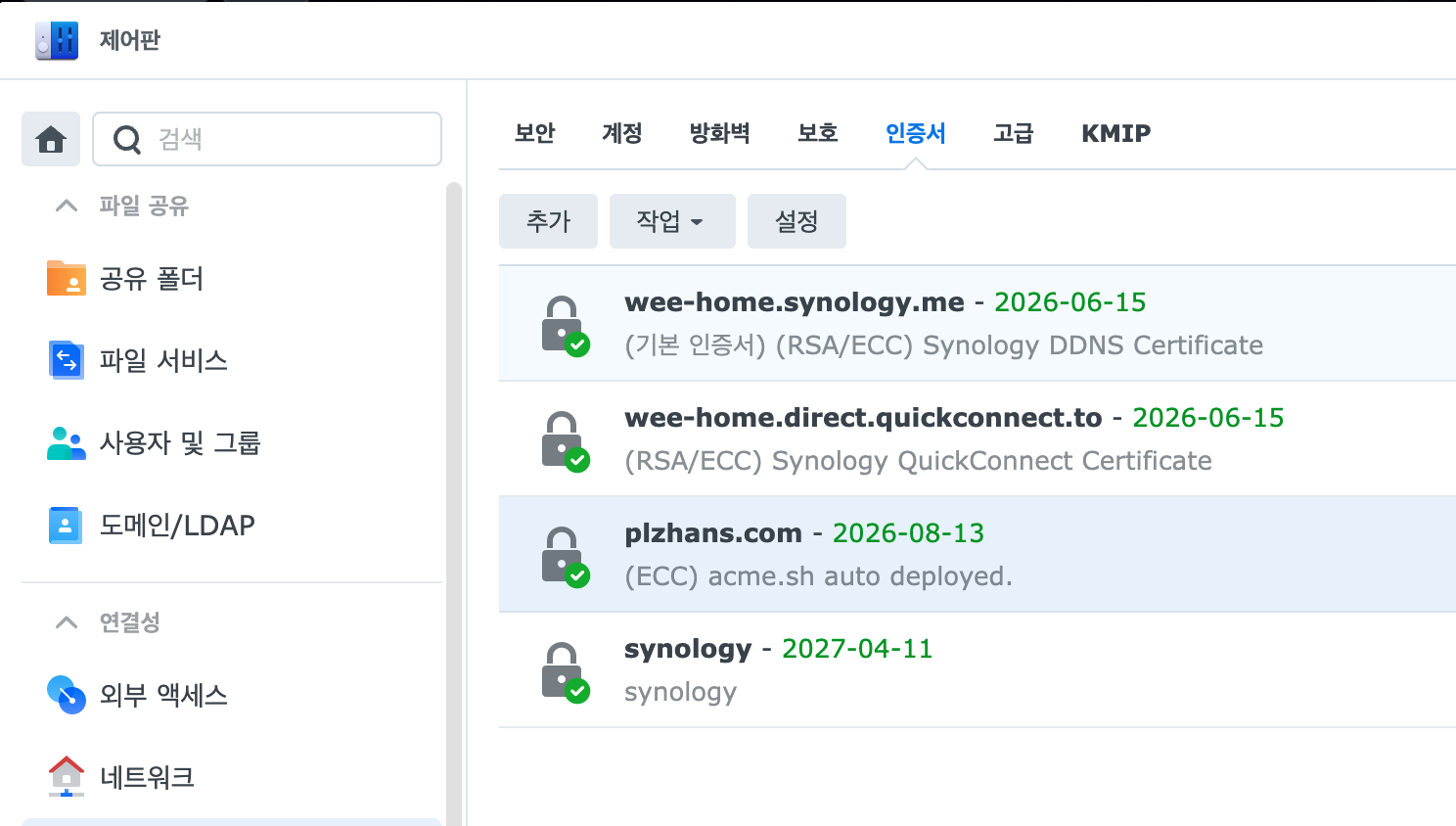
DSM Verification
FAQ: Hostname/Certificate Matching Issue
If external access is blocked and the primary domain is unreachable (e.g. wee-home.synology.me), a certificate matching error may occur because the command accesses https://{Hostname}:{port}.
Choose one of three solutions
- Set
SYNO_Hostnameto an accessible domain with a valid certificate - Add a domain entry in the
/etc/hostsfile to bypass DNS resolution and connect to127.0.0.1 - Use the
httpscheme instead
References
- https://github.com/acmesh-official/acme.sh/wiki/Synology-NAS-Guide
- For the fundamental difference between free and paid certificates, see HTTPS TLS/SSL Free vs Paid Certificates